EDIFICE Inquiry - Timeline View
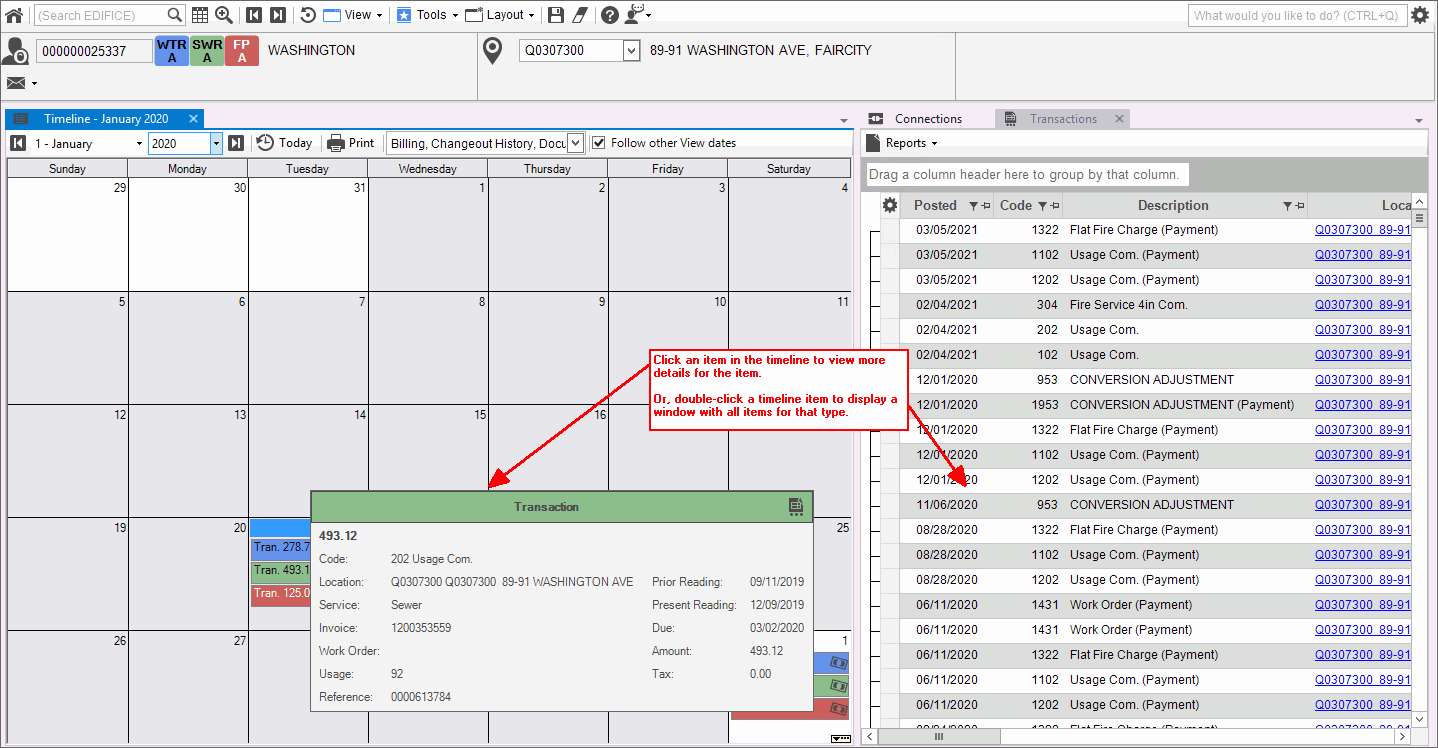
The Timeline View offers a calendar view of account activity, as well as offering the ability to drill-down to detailed information. This allows for fast retrieval of information from a single screen. You can specify the types of information that you want to view in the calendar including connection change out activity for the account. If the Follow Other View Dates options is selected, when you double-click an item the related view will open where you can view the details. Use the print option to print the account activity for the month. Printing can be a handy way to provide documentation for an outside organization or for legal matters, for example.
Tip: To see a sample printout, click Timeline view Calendar Print Sample.
From the EDIFICE Inquiry, click View and then click Timeline View.
EDIFICE Inquiry - Timeline View Example:
EDIFICE Inquiry - Timeline View Prompts |
|
Select Month to View
To start, select the month and year
Or, to specify today, click Today |
|
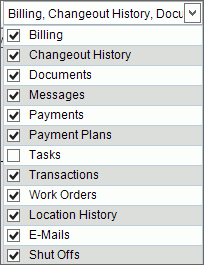
Calendar Items |
To limit the types of items that display in the calendar, click to check or uncheck items in the drop-down list. Items that are checked will display in the calendar.
|
Follow Other View Dates |
This
option allows you to drill-down to the billing, payments and transactions
views to see additional information. To drill-down to additional
information, check the Follow
Other View Dates |
To print the calendar with the items for the selected month, click Print. Tip: To see a sample printout, click Timeline view Calendar Print Sample. |
|

 to view. To go ahead a month from
the current month, click
to view. To go ahead a month from
the current month, click  . To go back 1 month from the current
month, click
. To go back 1 month from the current
month, click  .
. .
.
 .
.