Bill Entry - Entering Special Bills - Charge Reversal
To reverse a bill that has been posted to an account, NDS recommends using the Billing Adjustments routines. This allows the reversal to be processed without interfering with any other billing transactions that are currently in progress.
Note: These instructions show how to reverse a bill using the billing adjustment routines. However, a bill can also be reversed using Bill Entry.
This step only affects the dates on the reversal bill. If you do not wish to send a statement to the customer that shows the reversal you can skip this step.
Before reversing a bill, the present read date on the meter may need to be reset, as it will become the service from date on the reversal bill.
1. To edit the last reading date, go to the Inquiry and call up the customer with the bill to reverse.
2. Open the Connections view and click Edit next to the meter ID.
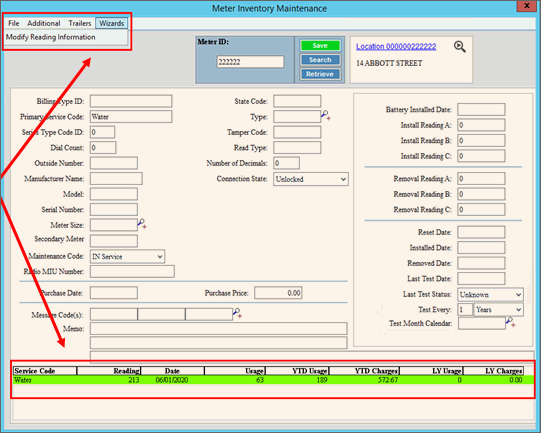
3. Use the Wizard's Modify Readings window of Meter Inventory Maintenance.
4. Do these steps for each service that is being reversed:
a. Select the desired reading.
b. Go to the Wizards menu and select Modify Reading Information.
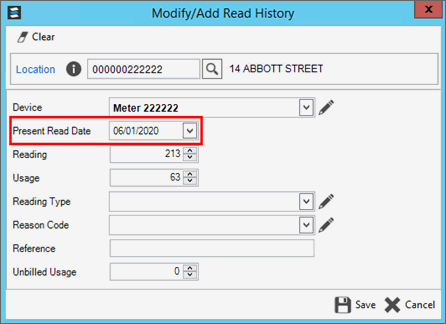
c. The Modify Readings Information screen opens.
d. Edit the present read date to be the appropriate date. This date will be used as the prior reading date/service from date on the reversal bill.
1. Go to Daily Work --> Billing Adjustments --> Billing Adjustments Entry.
2. At the Billing run code prompts entered the desired run code and then the beginning and ending service dates for the bill to reverse.
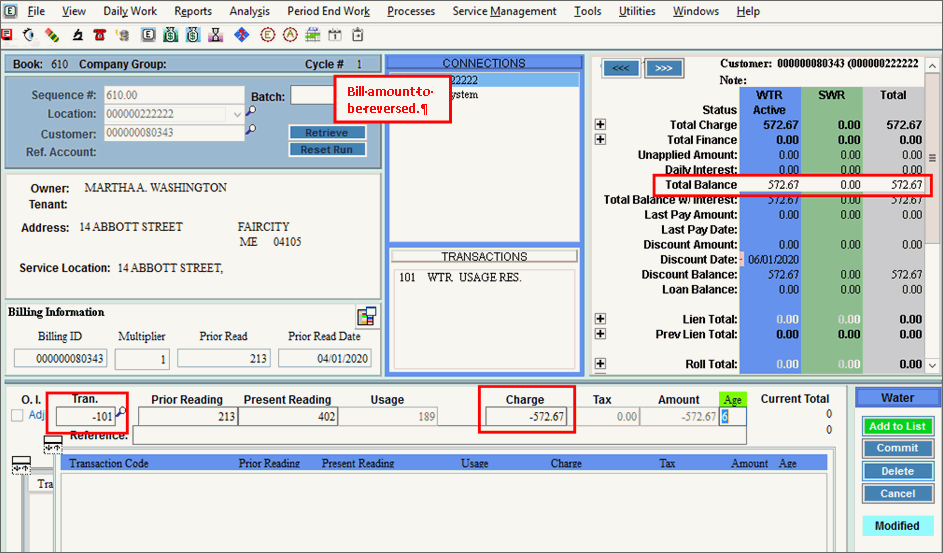
3. Retrieve the customer with the bill to reverse.
4. Enter a negative sign
(-) in front of the same transaction code that was used on the bill being
reversed.
Example negative transaction code: -101 for sewer charge
5. If usage is required, enter the desired the prior reading and the present reading amounts for the bill reserval. Whatever is entered for the present reading will be the meter's beginning (prior) reading on the next bill.
6. If readings are entered, confirm the charge and tax amounts calculated correctly and are negative amounts. Otherwise, enter negative charge and tax amounts to zero out the bill amount.
7. Edit the age of the charge if needed.
8. To complete the transaction, click Add to List.
9. Continue adding transactions until all transactions for this bill are entered. To finish, click Commit List.
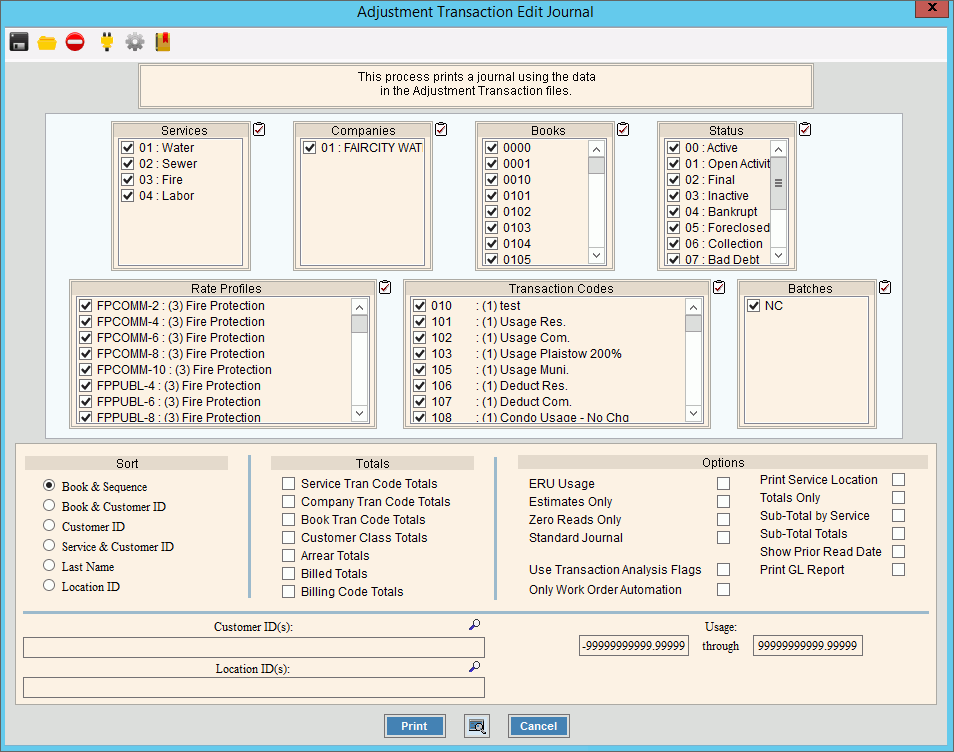
Run the Billing Adjustment journal to proof your work. Verify that the amounts are the same as the bill being reversed. A copy of the journal is maintained in report history.
1. Go to Daily Work --> Billing Adjustments --> Billing Adjustment Journal.
2. Choose the desired options for generating the journal.
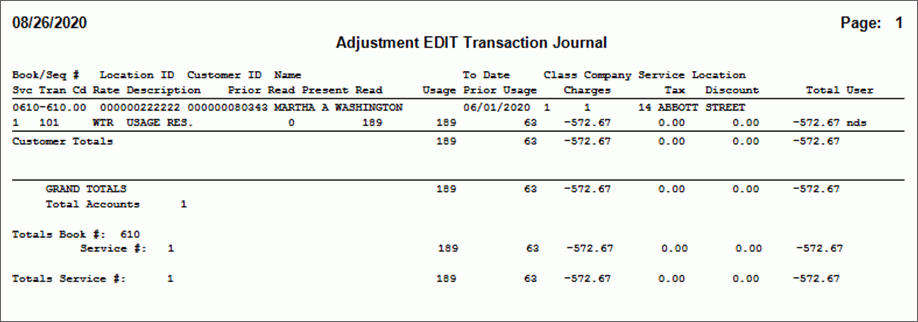
If you want to generate a statement for the customer that shows the reversal, then you will need to run the billing adjustments statements.
Note: If you do not need a statement for the customer, then you can skip this step.
1. Go to Daily Work --> Billing Adjustments --> Print Statements.
2. Choose the appropriate statement ID and other options.
3. Then, click Print.
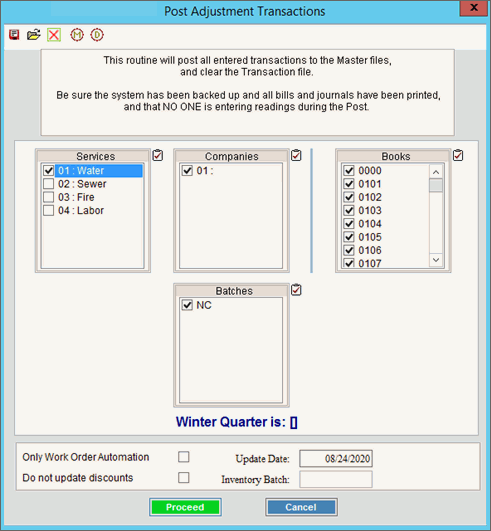
Run the Billing Adjustments Post to update the customer and the device and to finalize the reversal process.
1. Go to Daily Work --> Billing Adjustments --> Post.
2. Choose the appropriate options.
3. Then, click Proceed.
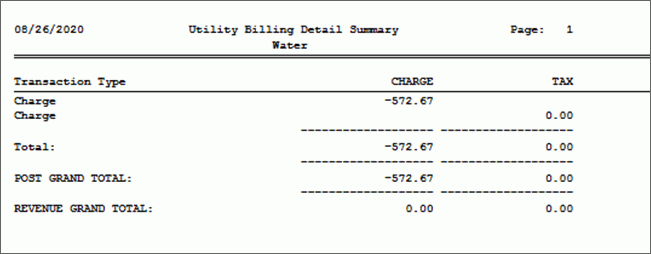
After running the post, the reversal is complete. Check the customer and device, as well as the history to make sure everything reversed correctly. Then, go back to Bill Entry and enter the bill with the corrected readings or usage.
