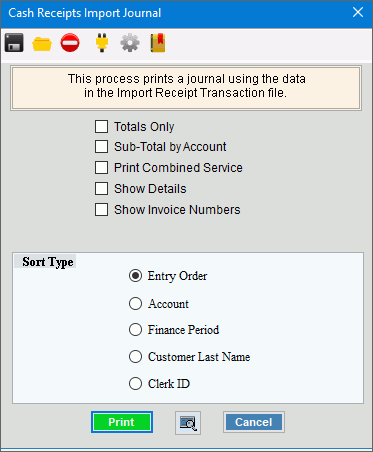
Use the Cash Receipts Import Journal to list all cash receipts import
transactions in the Cash Import file
(CASH-IMP). Use this journal to proof the transactions before posting
them to the Daily Work cash receipts transactions file.
Print Transaction
Journal Prompt Options
|
Totals Only |
To omit the receipt details and only
print the journal totals, click to check Totals
Only. The report will provide totals by transaction
codes and finance periods as well as a total for each type of
payment.
To include receipt details, leave
this box unchecked. |
Sub-Total by Account |
To print subtotals for each customer,
check this box.
To omit subtotals for each customer,
leave this box blank. |
Print Combined Service Journals |
To combine and list together all
service payments for each customer on the journal, select this
box. |
Show Detail |
To include a second line for the
location ID and location address, check this box. Or, to
omit this information, leave this unchecked.
Note:
Show Detail only pertains to location aware
customers. |
Show Invoice Numbers |
To include the invoice number associated
with the payment, check this box. Or, to omit the invoice
numbers leave this unchecked. |
Account Information |
Select an option:
Show Account Information
- lists just account information Show Location Information
- replaces customer information with the location ID and location
address Show Both - lists the customer
information and adds a second line for the location ID and
location address along with headings
Note:
This generally pertains to open item accounts. |
Sort Type |
To choose a sort option, click to
select the appropriate button.
Sort
Options:
Entry
Order - Reports transactions in order. Account
- Reports transactions in order. Financial
Period - Reports transactions in order. Customer
Last Name - Reports transactions alphabetically by
customer . Clerk
ID - Reports transactions in
order. |


|
To begin printing, click Print,
or press [ENTER].
Keyboard shortcut: [ALT + p]
To
print to the Print
View screen, click Print View.
To escape from the print routine, click
Cancel  . .
Keyboard
shortcut: [ALT + c] |
 on the Cash
Import Fast Access Panel.
on the Cash
Import Fast Access Panel.