Message Code Maintenance
Use Message Code Maintenance to add, edit or remove standardized messages. Messages have 2 purposes. You can use message codes to quickly enter a message regarding a customer. And, you can use a message code to print a standard message on all customer statements for a statement run including billing statements, adjustment statements, past due statements, and finance charge statements. To add an individual message to a customer account use the Customer Add Message Code Wizard. For example, if you are not using the Service Management application you can maintain customer service call information by creating a message for service calls and adding it to the customer. You can add an image to a message code to make the message visually identifiable.
To open from Quick Launch enter Message Code Maintenance and then click Message Code Maintenance in the list.
Or click Daily Work
from the menu. Then
click File Maintenance --> Code Maintenance
--> Miscellaneous Maintenance --> Message
Code Maintenance.
Tip: Or, use the keyboard
shortcut: [ALT] [y] [m] [c]
[i] [e] [ENTER].
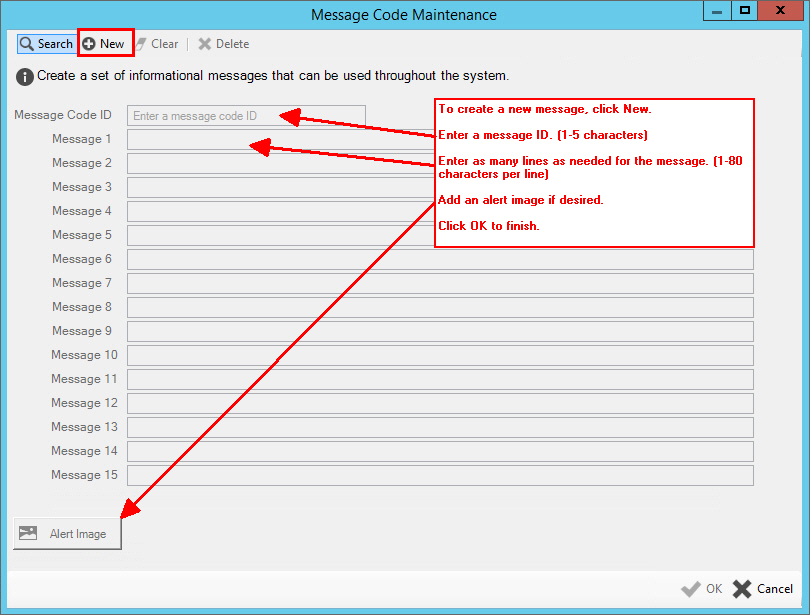
Message Code Maintenance Window Example:
Message Code Maintenance Prompts
|
|
|
To build a new message, click New. |
Enter the ID for the message. (up to 5 characters) Required To view all of the message codes, click
Search
|
|
Enter the first line of the message information. (up to 80 characters) |
|
Enter up to 15 lines of message information to be used for the message. (up to 80 characters per line) Tip: Use only as many lines as you need. |
|
|
To add or change the alert symbol to include with a message, click Alert Image and select the desired image to include with the message or click Browse to find a unique symbol. To remove an alert image, click Trash |
|
To update the new or changed information, click OK. |
To avoid losing data, you must save new or changed records. |
|
Editing a Message Code |
1. Enter the Message
Code and press [ENTER]. 2. Click the field to change. 3. Enter the changes. 4. To complete the edit
process, click OK
|
Deleting a Message Code |
1.
Click Search
2. Click Delete 3. At the Delete prompt,
click Yes to delete the
message, or click No to
escape from the delete routine.
|



 .
.
 CAUTION
 .
.