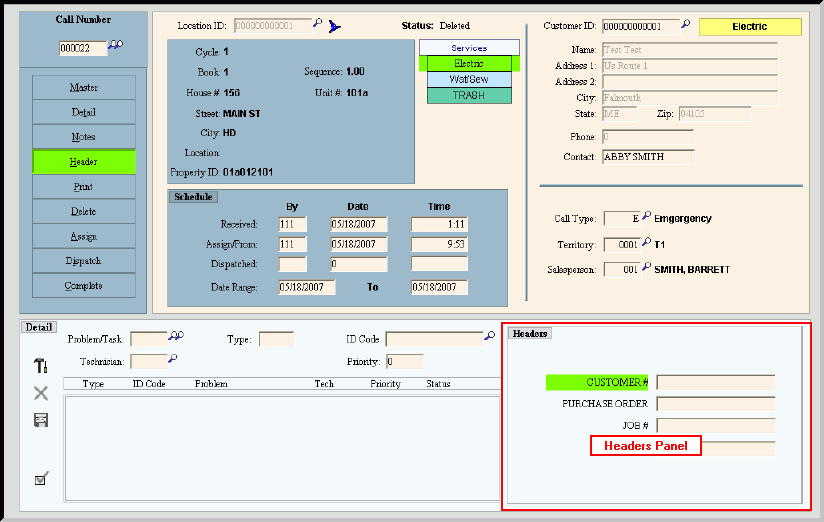
Service Call Entry - Headers Panel
Use the Headers Panel to maintain up to four informational fields that you can define to suit your purposes. The Header fields print on the associated service call work order. The table following the window example describes the Headers Panel for Service Call Entry.
Tips:
Because the Header Field Labels are user-defined, the field names in the software may not match the documentation. You can assign the field labels during Service Call Header Maintenance.
For more information about working with data in fields, see the Data Entry Guidelines.
To display the Service Call Entry - Headers Panel:
1. Click Service Mgt from the Menu Bar.
2. Click Daily Work.
3. Click Service Call Entry.
Tip: Or, use the keyboard shortcut: [ALT] [m] [a] [e].
4. Enter the desired Call Number.
5. Click Header from the Action Panel.
Service Call Entry - Headers Panel Example:
|
Service Call Entry - Headers Panel Prompts Tip: To see more information about a field, click the hyperlink for the field name. |
|
|
Enter the information for the first service call Header field. (up to 15 characters) |
|
|
Enter the information for the second service call Header field, if applicable. (up to 15 characters) |
|
|
Enter the information for the third service call Header field, if applicable. (up to 15 characters) |
|
|
Enter the information for the fourth service call Header field, if applicable. (up to 15 characters) |
|
|
|
To complete entry of the header fields and to return focus to the Action Panel, press [ENTER]. |
