Opening Appointment Visit Types Extended Information Maintenance, click More.
1. Click File Maintenance from the Menu Bar.
2. Click Miscellaneous Maintenance.
3. Click Appointment Visit Types.
4. Click
Additional from the
Appointment Visit Types Maintenance Menu Bar.
Tip: Or,
use the keyboard
shortcut: [ALT]
[m] [i] [a] [ALT + a] [e].
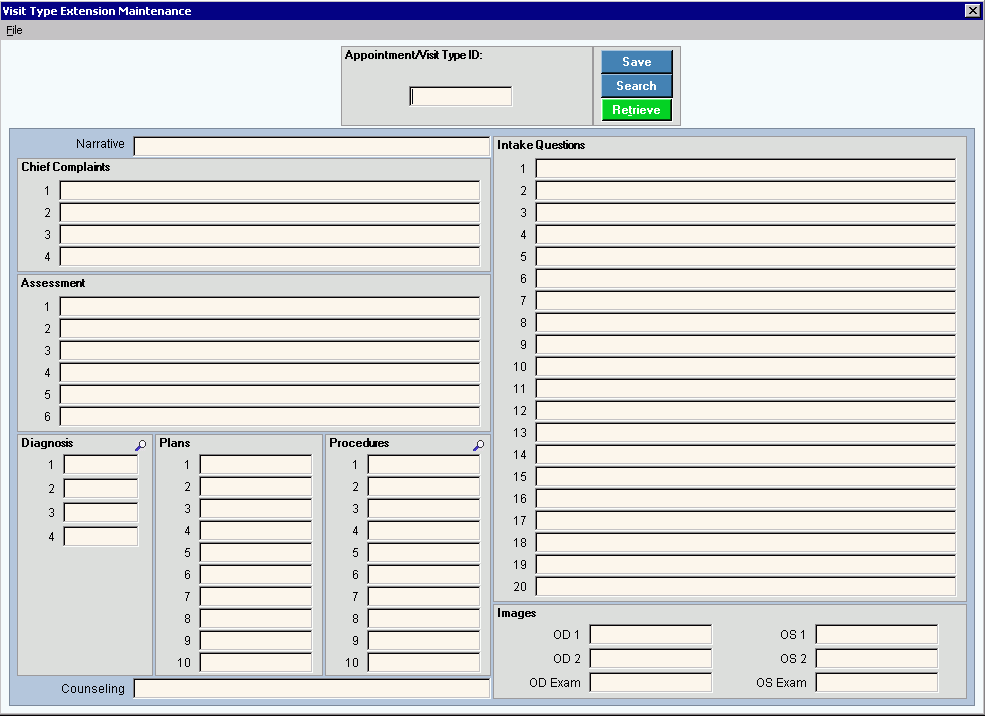
Appointment Visit Types Extended Information Maintenance Window Example:
Creating a New Appointment Visit Type Extended Information Record, click More.
To create a new record:
|
Appointment Visit Type Extended Information Maintenance Prompts Tip: To see more information about a field, click the hyperlink for the field name. | |
|
To accept the defined Appointment Visit Type, press [TAB]. Or enter another defined Appointment Visit Type ID. (up to 10 characters) | |
|
|
To update the new or changed information, click Save or press [ENTER]. Keyboard shortcut: [ALT + s] |
|
To avoid losing data, you must save new or changed records. | |
|
|
To view all of the existing Appointment Visit Type Extended Records, click Search. From the Search list you can select the record to change or delete. Keyboard shortcut: [ALT + r] |
|
|
To display an existing Appointment Visit Type Extended Records, enter the Appointment Visit Type ID and click Retrieve, or press [ENTER]. Keyboard shortcut: [ALT + t] |
|
Narrative |
Enter a brief message that summarizes the particulars of the appointment type. (up to 100 characters) |
|
Chief Complaint |
Enter the typical chief complaints for the type of appointment visit. (up to 100 characters per line, up to 4 lines) |
|
Assessment |
Enter the assessments for the type of appointment visit. (up to 100 characters per line, up to 6 lines) |
|
Enter the diagnosis codes that are associated with the type of appointment, if applicable. (up to 9 characters) Tip: To search
for a Diagnosis Code, click Search | |
|
Plans |
Enter the plans that are associated with the type of appointment, if applicable. (up to 50 characters per line, 10 lines) |
|
Enter the diagnosis codes that are associated with the type of appointment, if applicable. (up to 9 characters) Tip: To search
for a Procedure Code, click Search | |
|
Intake Questions |
Enter intake questions associated with the type of appointment, if applicable. (up to 20 characters) |
|
Images |
Note: Images are reserved for future use. |
 or press
Editing an Existing Appointment Visit Type Extended Information Record, click More.
 CAUTION: To
avoid losing data, you must save new or changed records.
CAUTION: To
avoid losing data, you must save new or changed records.
1. To
display the record to be changed, enter the Appointment Visit Type ID
and click Retrieve  ,
or press [ENTER].
,
or press [ENTER].
Keyboard shortcut: [ALT
+ t]
Tip: If
you do not know the Appointment Visit Type ID,
you can click Search  to see a list of Appointment Visit Type Extended Records.
2. To position the pointer to the information that you want to change, press [TAB] or click the field using the mouse.
3. Enter the data changes.
4. To
complete the edit process, click Save  , or press [ENTER].
Keyboard shortcut: [ALT
+ s]
Deleting an Existing Appointment Visit Type Extended Information Record, click More.
1. To
display the record to be deleted, enter the Appointment Visit Type ID
and click Retrieve ,
or press [ENTER].
Keyboard shortcut: [ALT
+ t]
Tip: If
you do not know the Appointment Visit Type ID,
you can click Search to see a list of Appointment Visit Type Extended Records.
2. Click
File from the Menu
Bar, and next click Delete.
Keyboard shortcut: [ALT]
[f] [d]
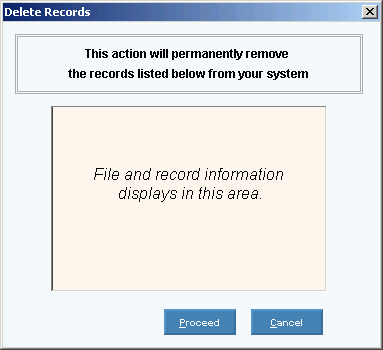
3. At the Delete Records prompt, click Proceed to delete the record, or click Cancel to escape from the delete routine.
Example:
Note: After
you click Proceed, you will see
the following message on the Status Bar.
