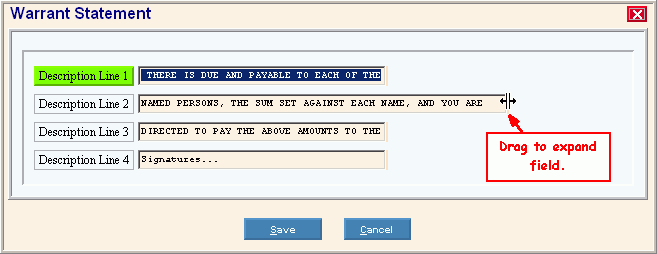
Check Register - Warrant Statement Maintenance
Use Check Register - Warrant Statement Maintenance to maintain the lines of text that print on the Check Register - Treasurer's Warrant Report and the PR A/P Check Register. The report prints a sign-off page for the treasurer. For example, municipalities frequently require that the Check Register be approved, which is indicated by the signed warrant page.
Directions:
To open click Utilities
from the Menu. Then,click
Misc Utilities and click
Check Register Warrant Statement.
Tip: Or, use the keyboard
shortcut: [ALT] [t] [u] [s].
Check Register Warrant Statement Maintenance Window Example:
Warrant Statement Maintenance Options Notes: Because there is only one Warrant Statement, you can not create a new Warrant Statement. To maintain the Warrant Statement, use the instructions below. You can
not
delete the Warrant Statement. However, to remove
the Warrant Statement text you can simply blank out each description
line, and then click Save
|
|
Enter the text to appear in Lines 1 through 6 on the Treasurer's Warrant Statement. (up to 75 characters) Tips:
|
|
Enter the text to appear on the Treasurer's Warrant Statement above the signatures if desired. For example, you can enter Board of Trustees, City Council, etc. (up to 25 characters) Tip: You can leave this field blank, if desired. |
|
|
To update the changed information, click Save or press [ENTER]. Keyboard shortcut: [ALT + s] To close the window without updating
the data, click Cancel Keyboard shortcut: [ALT + c] |
|
|

 .
. .
. CAUTION: To avoid losing
data, you must save changed information.
CAUTION: To avoid losing
data, you must save changed information.