Revolving Deduction Report Instructions
Use the Revolving Deduction Report to print a list of employees with revolving deductions that have met or exceeded the rollover amount. You can print all employees or just the employees associated with a specific Run Code. You can use this report as a tickler to notify you when it is time to pay the vendors for revolving deductions.
Tips:
Print this report before running the Revolving Deduction Rollover process.
Revolving deductions are identified by the Rollover or Maximum Flag.
For more information about revolving deductions, see the Savings Bond example in Employee Master Scheduled Deductions Maintenance.
To see an example of the report, click Revolving Deduction Report Sample.
Directions:
To open click Payroll
from the Menu. Then,
click Other Payroll Work and
click Revolving Deduction Report.
Or, use the keyboard
shortcut: [ALT] [e] [o] [v].
Revolving Deduction Report Window Example:
Revolving Deduction Report Options
|
|
Report Writer Range & Sort |
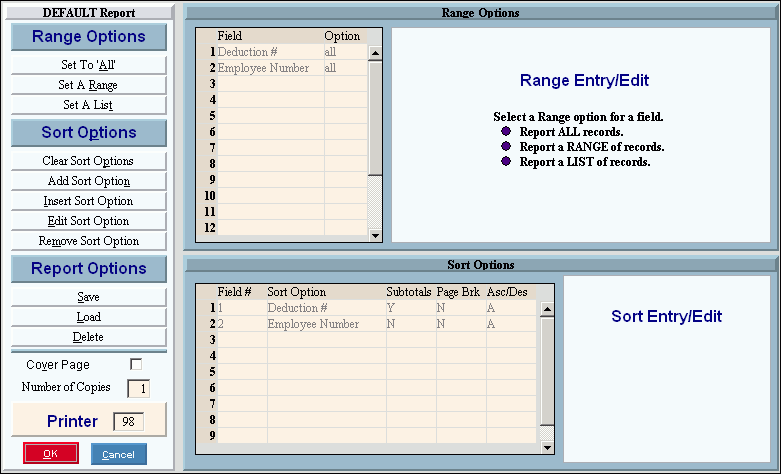
You can make changes to the Report Writer range and sort as needed. For more information on changing the range or sort options, see Report Writer Overview. |
Additional Options |
To include a cover page, check the Cover Page box. To include a detail separator, click to check the Detail Separator box. To omit the detail separator, leave the box unchecked. |
|
To generate the report, click Print, or press [ENTER]. Keyboard shortcut: [ALT + p] To print to the Print
View window, click Print
View To escape from the print
routine, click Close |
|
To begin generating the report, click Continue. Keyboard shortcut: [ALT + o] To escape from the print routine, click
Cancel Keyboard shortcut: [ALT + c] |
After selecting Print or Print View, the following options are displayed.
|
|
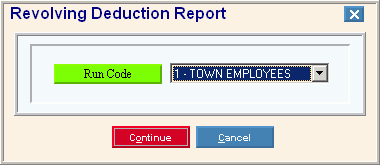
To specify a group of employees to include in the report, click one of the Run Codes in the drop down list. Tip: To select all employees, click ALL. |
|
|
To begin generating the report, click Continue. Keyboard shortcut: [ALT + o] Or to escape from the report, click
Cancel Keyboard shortcut: [ALT + c] |



 .
.
 .
.