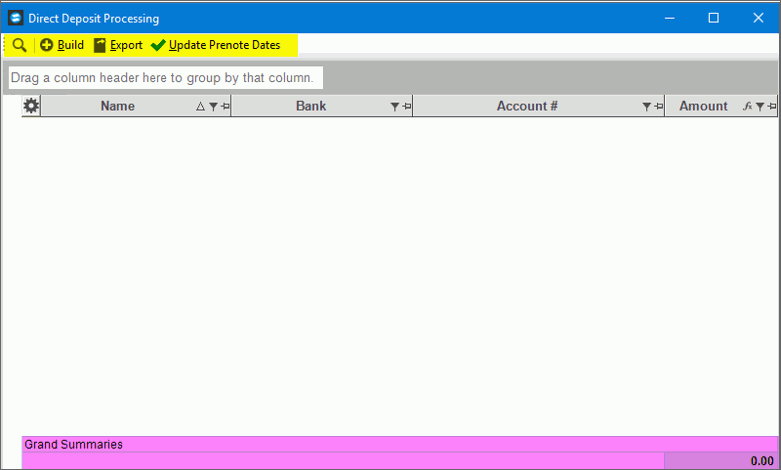
 . The following screen is displayed.
Direct Deposit Processing
Use the Direct Deposit Processing to build the direct deposit export file containing the direct deposit paychecks to be sent to the bank. First, you will build the direct deposit file and generate a list of all employees with their account numbers and the amount of pay being deposited. Pre-note employees will also be listed on the report. After reviewing and confirming the direct deposit list is accurate, create the direct deposit export file. You will also update prenote dates as well.
To see an example of the...
build report for Type 1, click Build Transmission File Report Sample.
direct deposit report for Type 2, click Direct Deposit File Report Sample.
Directions:
From Payroll Processing, select Direct
Deposit . The following screen is displayed.
Direct Deposit Processing Window Example:
Direct Deposit Processing Options
|
|
Build
|
|
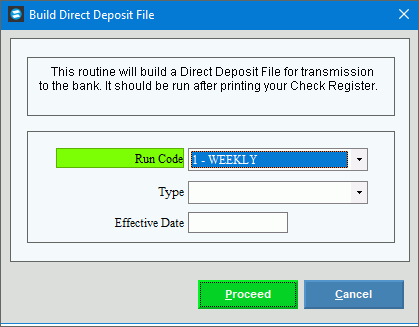
Click the appropriate Run Code in the drop-down list. (predefined) Note: To build the direct deposit file for all Run Codes at once, click All Run Codes. |
|
Type |
Click a type of function in the drop-down list. (predefined)
|
The Direct Deposit Effective Date defaults to the Check Date entered during Edit Payroll Check Dates, but you can change it. .(MM/DD/CCYY) |
|
|
To build the direct deposit file or to generate the report, click Proceed, or press [ENTER]. Keyboard shortcut: [ALT + p] Or,
to escape from the routine, click Cancel |
Print Report |
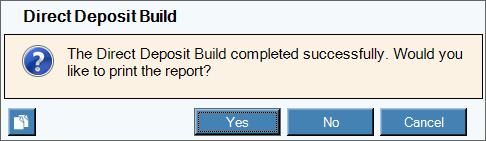
After the export file is built, this report message is displayed. To print the report, click Yes.
|
Export
|
|
Destination ID |
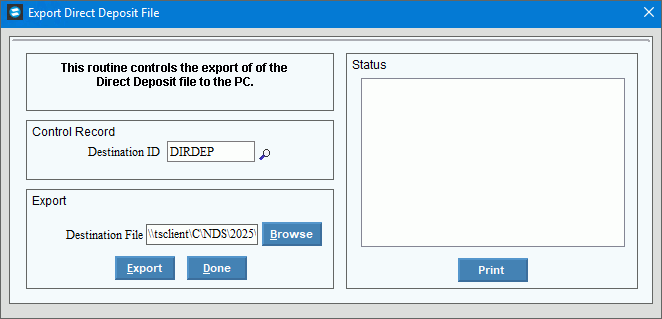
To load the correct export file name and path, enter the Destination ID that was defined during Direct Deposit Export Destination Maintenance. (up to 20 characters) Note: The Destination ID also defines the file type and the file definition (layout). |
Destination File |
Leave the default value for the path and the export file name or to search for a different file name and path on your system, click Browse. Example: c:\payrollexport\prdirdep.txt Notes:
|
|
To build
the export file, click Export
|
Export Completion |
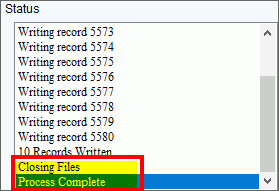
Processing messages display in the right panel. Make sure Processing Complete displays when the process is finished.
|
|
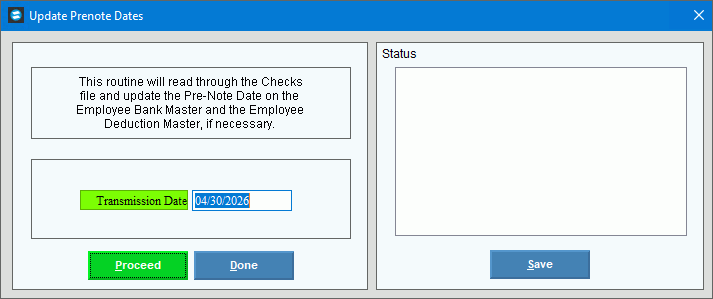
Use Update Pre-note Dates function to set the dates on any new direct deposit employees with the Direct Deposit Transmitted Date as the beginning of their 10-day pre-note period. It is recommended that you run this step with every payroll even if there aren’t any new direct deposit employees in the pay period. For employees still in the prenote period, the program updates the transmission date in the employee deduction bank for net pay and in the employee scheduled deductions for direct deposit deductions. IMPORTANT: NDS recommends that you do not process Update Prenote Dates until your financial institution confirms that they received the direct deposit transmission file and it is correct.
From the Direct Deposit Processing
screen, select Update Prenote
Dates
|
|
Enter the Direct Deposit Transmission Date, which contains the date you plan to transmit the direct deposit file to the bank. Note: The Transmission Date, usually today's date, must be a predetermined number of lead days before the Direct Deposit Effective Date, so the bank has enough lead time to process the transactions. The DD-Days Table controls the number of lead days required. |
|
|
To start the process, click Proceed. |
|
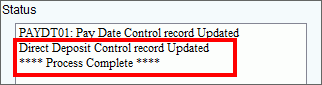
When the process is finished, the following messages will be displayed.
|





 To close the window, click

 To close the screen, click