 and the following screen is displayed.
Payroll Post Instructions
Use the Payroll Post process to finalize the Payroll run and to update the appropriate files, including employee totals, posting to the General Ledger, posting to the Fund Accounting if applicable, and invoice transactions for the Vendor Invoices and Checks feature, if applicable.
Tips:
To see information about timing, refer to the Payroll Runbook.
The Payroll Post uses information from the following tables, when applicable: GL W/H, GL Pay, GL PAYnn, GLSTID, O DED, ST W/H, PRINVCHK, and PRVNDST.
The Payroll Post generates the following reports: Employee Fund List, Payroll Post Messages, Post to Appropriations (for municipalities with Fund Accounting), Post to Expense Distribution (for municipalities), Post to G/L Journal
For more information about running reports, see Print View.
To see the Payroll Post steps in the sequence that they are performed, click More.
How to correct a paycheck that was posted incorrectly, see the Advanced Feature - Entering Reverse Checks topic.
To see an example of the report, click Payroll Post Reports Samples.
Directions:
From Payroll Processing, select Post
and the following screen is displayed.
Payroll Post Window Example:
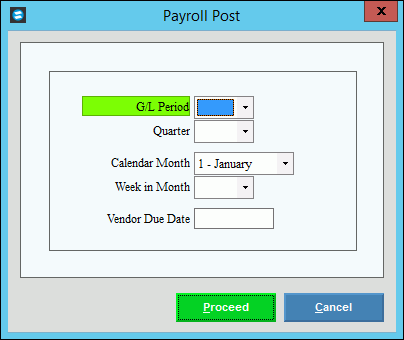
Payroll Post Prompt Options
|
|
From the list, click the General Ledger Period for the posted entries. (1 - 13) |
|
Quarter |
From the list, click the calendar Quarter in which this payroll falls to update the correct quarterly totals. (1-4) |
Calendar Month |
From the list, click the Calendar Month in which this payroll falls to update the correct monthly totals. |
Week in Month |
From the list, click the Week of the month in which this payroll falls to update the correct weekly totals. (1 - 5) |
Enter the Date to be assigned as the due date for all of the invoice transactions to be processed by the Vendor Invoices and Checks feature. (MM/DD/CCYY. Slashes are optional.) Notes:
|
|
|
To run the process and generate the report, press [ENTER] or click Proceed. Keyboard shortcut: [ALT + p] To escape from the routine, click Cancel Keyboard shortcut: [ALT + c] |


 .
.