 .
.Permanent Pay Transfer
Use Permanent Pay Transfer during the payroll cycle to transfer paycheck information that was entered during Permanent Payroll Check Entry (the source files) into the Payroll Check Entry files for the current pay period (the target files). After running Permanent Pay Transfer, you can edit the information using Payroll Check Entry, if necessary. You can optionally print the completion messages for your archive.
Notes:
If you run Permanent Pay Transfer more than once within a pay period for a specific Run Code, a warning is displayed. If you click Yes to bypass the warning and continue, you will duplicate the Permanent Payroll Checks for the current pay period. See below.
To see an example of the report, click Permanent Pay Transfer Status Box Listing Sample.
Directions:
From Payroll Processing, select Permanent
Pay .
Permanent Pay Transfer Prompt Window Example:
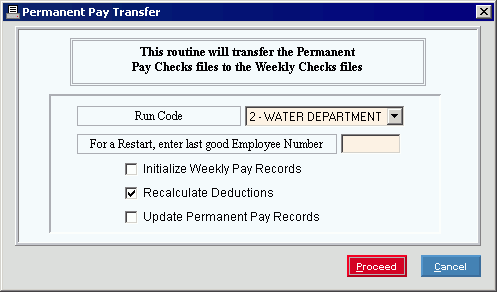
Permanent Pay Transfer Prompt Options Note: If this is the first time you are transferring paycheck information for the selected Run Code during this Payroll Run, enter the information at the Edit Payroll Check Dates prompt. If this is the first time your are transferring paycheck information during this Payroll Run, enter the date at the Direct Deposit Transmission Date prompt. |
|
Click the appropriate Run Code in the drop-down list. (predefined) Tip: If you do not use multiple Run Codes, simply leave the default for Run Code 1. |
|
Restart Employee Number |
If the last transfer failed, you can restart the transfer at a selected employee. Enter the Employee Number of the last good employee transferred. (7 digits) |
Initialize Weekly Pay Records |
To specify if you want to clear all of the paycheck records from the previous pay period, including records that were entered using Payroll Check Entry:
|
Recalculate Deductions |
To specify if you want to recalculate the standard deductions and scheduled deductions for all transferred paychecks:
Tips:
|
Update Permanent Pay Records |
To specify if you want to update the deductions in the source files, which are the Permanent Payroll Check Entry files: |
|
To start the Permanent Pay Transfer, click Proceed, or press [ENTER]. You will then see the status messages in the Status Window. Keyboard shortcut: [ALT + p] Or to close the program without running
the transfer, click Cancel
If the Permanent Paychecks have already been transferred for the selected run code, the following message is displayed. Click Yes to continue or click No to stop and return to Payroll Processing.
|
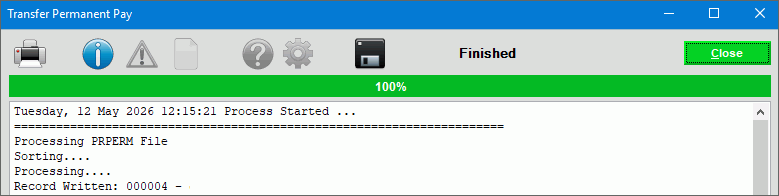
Permanent Pay Transfer Status Window Displays messages that indicate the progress of the transfer process. Note: If you see the error message No records found that qualify, then you may have attempted to transfer a Run Code with no employees entered into Permanent Payroll Check Entry.
To print the status window messages,
click Print After you see the Process
Complete for Run Code message in the Status Window, click
Close |
|




 . Keyboard shortcut: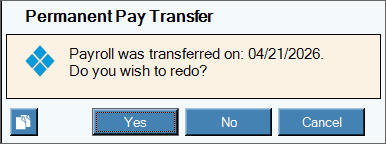

 or to save the messages,
click
or to save the messages,
click 
 to
close the window.
to
close the window.