.
.Print Payroll Checks Instructions
Use Print Payroll Checks to print the employee paychecks. You can specify the beginning check number, the sort sequence, whether or not to print an alignment page, and other options.
Notes:
Refer to the Payroll Runbook for timing information.
Several Company Control Options affect the following paycheck features:
Print Social Security Number.
Print Available and Sick Time.
Laser Check Format.
Print Hourly Rate on Stub.
Print Check Stub First.
Voided checks print for employees who have direct deposit for their net pay.
Regular checks print for employees who have direct deposit, but are still in the prenote period.
Checks do not print for prepaid checks, reversals, and other negative net pay checks.
Directions:
To open, from Payroll Processing, select Print
Payroll Checks .
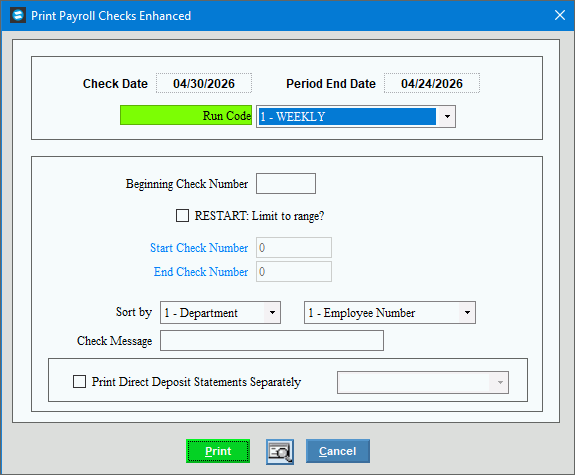
Print Payroll Checks Window Example:
Print Payroll Checks Options
|
|
Displays the Check Date you entered for the selected Run Code during Edit Payroll Check Dates. (MM/DD/CCYY.) |
|
Displays the Period End Date you entered for the selected Run Code during Edit Payroll Check Dates. (MM/DD/CCYY.) |
|
Click the appropriate Run Code in the drop-down list. Note: To print checks for all Run Codes at once, select All Run Codes. |
|
Beginning Check Number |
Enter the Check Number to print on the first check. (8.0 numeric) Required. Note: If this is a restart, enter the Check Number for the restart point. Example: Your original Check Number was 4025 and the printer jammed on Check Number 4075, which was physically torn up. When you restart, enter 4075 as the Beginning Check Number. You will then enter 4074 in the next field (as the last good check that printed). |
Last Good Check Number (for restart) |
If your check run aborted unexpectedly, perhaps during a printer jam, you can restart it. Enter the last good Check Number that printed. (8.0 numeric) When you run a restart, make sure that all your other options are the same as the original print run. Example: If your printer jammed on Check Number 4075, enter 4074 during the restart to indicate it was the last good check to print. The reprint will start with Check Number 4075. |
Sort by (primary) |
Click one of the following primary sort options in the drop-down list:
|
Sort by (secondary) |
Click one of the following secondary sort options in the drop-down list:
|
Enter an optional text message to print above the Check Date at the top of all checks. (up to 38 characters) Tip:
To expand the width of the field so you can see the entire
38 characters at once, point to the right field border. When the
pointer changes into a horizontal double-headed arrow |
|
Print Direct Deposit Statements |
If you use the direct deposit feature and want to print paychecks separately from direct deposit statements, select this option. Note: This option may not be active for you. To activate this option please contact NDS Support at 800-649-7754. |
Print DD Statement Option |
If you selected the above option to print direct deposit statements separately from paychecks, click one of the following print options in the list.
|
|
To generate the paychecks, press [ENTER] or click Print. Keyboard shortcut: [ALT + p] To
print to the screen, click Print
View To escape from the print routine, click
Cancel Keyboard shortcut: [ALT + c] |
Alignment |
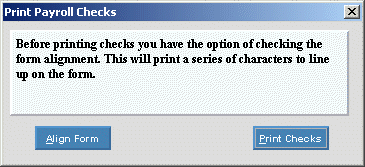
When you click Print, you will next see the forms alignment prompt window. Example:
1. To print a test pattern for lining up the forms on the printer, click Align Form as many times as necessary. 2. When alignment is correct, click Print Checks to start printing the paychecks. |

 ,
drag the border to the right.
,
drag the border to the right.

 .
.