Department Totals Report Instructions
Use the Department Totals Report to print the accumulated month-to-date, quarter-to-date, and year-to-date totals for each Department number.
Tips:
This report is applicable only if the Department File Active Flag in Company Control Options is set accordingly.
Do not confuse this report with the Department Totals Register, which runs with the Check Registers.
To see an example of the report, click Department Totals Report Sample.
Directions:
To open click Reports
from the Menu. Then,
click Earnings Reports and
click Department Totals Report.
Or, use the keyboard
shortcut: [ALT] [e] [e] [a].
Department Totals Report Window Example:
Department Totals Report Options
|
|
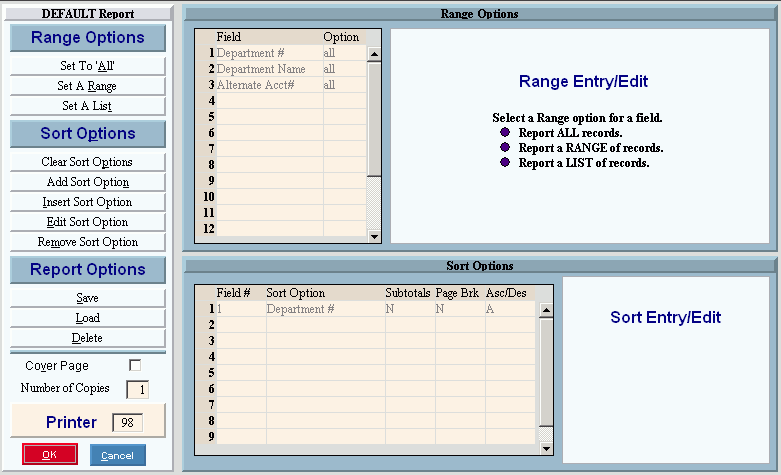
Report Writer Range & Sort |
You can make changes to the Report Writer range and sort as needed. For more information on changing the range or sort options, see Report Writer Overview. |
Additional Options |
To include a cover page, check the Cover Page box. To include a detail separator, click to check the Detail Separator box. To omit the detail separator, leave the box unchecked. To only export the report, check the Export Only box. See the Export Only Step below for instructions. If you select Export Only, select Export Column Headings if you want to include column headings in the Excel file. |
|
To generate the report, click Print, or press [ENTER]. Keyboard shortcut: [ALT + p] To print to the Print
View window, click Print
View To escape from the print
routine, click Close |
Export Only Step |
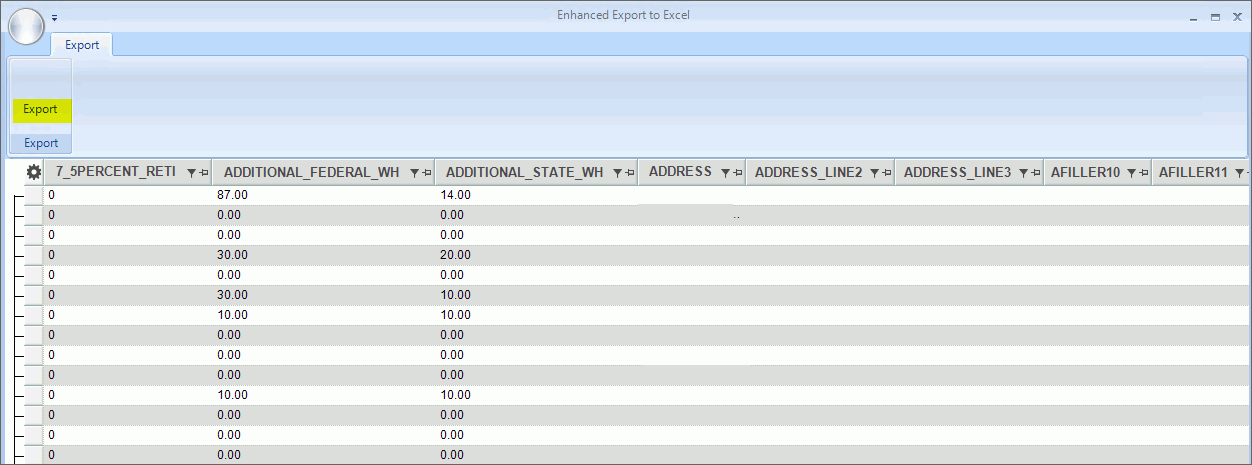
If Export Only was selected, the report will display in an Export to Excel window.
Click Export
Browse for the location to save the file and enter a name for the file. Click Save As to complete the file save. |



 .
.