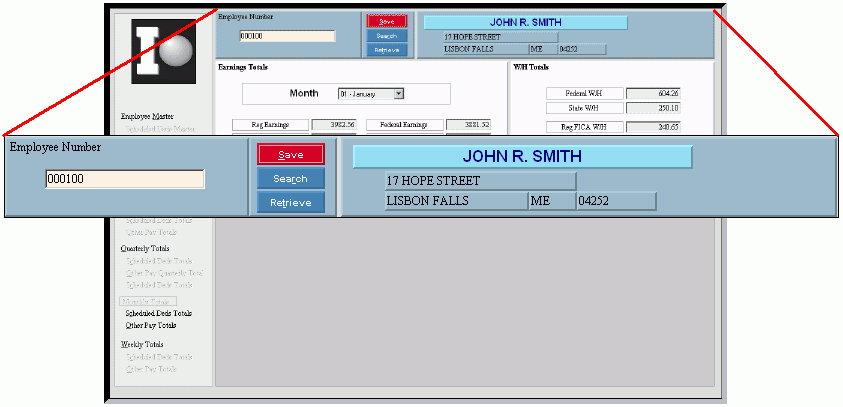
Employee Monthly Totals Maintenance - Employee Number Area
Use the Employee Number Area in Employee Monthly Totals Maintenance to enter the Employee Number, which retrieves the totals information and displays the employee's name and address. The table following the window example describes the fields in this area.
Directions:
To display the Employee Number Area, open Employee Monthly Totals Maintenance.
Employee Monthly Totals Maintenance - Employee Number Area Example:
Employee Number Area Prompts Tip: To see more information about a field, click the hyperlink for the field name. |
|
Enter the Employee Number assigned to the employee. (up to 7 digits) Required Note: If you omit leading zeros, the system automatically fills them in. |
|
|
To display an existing employee, enter the Employee Number and click Retrieve, or press [ENTER]. Keyboard shortcut: [ALT + t] |
|
To update the changed information, click Save, or press [ENTER]. Keyboard shortcut: [ALT + s] |
To avoid losing data, you must save changed Employee Monthly Totals. |
|
|
To view all of the existing employees, click Search. From the Search list you can select an employee to change. Keyboard shortcut: [ALT + r] |
Displays the employee's first name and middle initial. (up to 15 characters) |
|
Displays the employee's last name. (up to 15 characters) |
|
Display's the employee's city. (up to 15 characters) |
|
Display's the employee's state. (2 characters) |
|
Display's the employee's zip code (postal code). (up to 10 characters) |
|



 CAUTION