Quarterly UCI Report Instructions
Use the Quarterly UCI Report to print information required for the FUTA deposit and the SUTA deposit.
Tips:
This report is also known as the Unemployment Compensation Insurance Report or the Unemployment Insurance Contribution Report.
For Massachusetts facilities, use the Quarterly Health Ins Report instead.
To see an example of the report, click Quarterly UCI Report Sample.
Directions:
To open click Reporting from the Menu
and then click Government Reports and
Quarterly UCI Report.
Or, use the keyboard
shortcut: [ALT] [e] [g] [u].
Quarterly UCI Report Writer Window Example:
Quarterly UCI Report Options
|
|
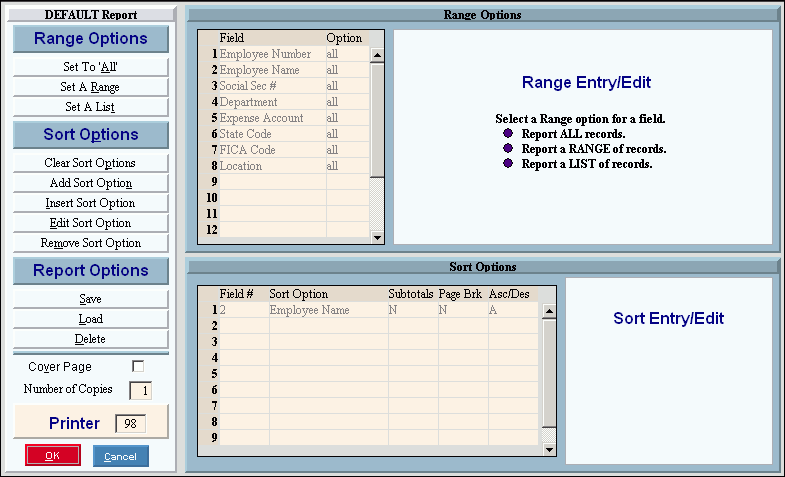
Report Writer Range & Sort |
You can make changes to the Report Writer range and sort as needed. For more information on changing the range or sort options, see Report Writer Overview. |
Additional Options |
To include a cover page, check the Cover Page box. To include a detail separator, click to check the Detail Separator box. To omit the detail separator, leave the box unchecked. To only export the report, check the Export Only box. See Export Only Step below for instructions. If you select Export Only, select Export Column Headings if you want to include column headings in the Excel file. |
|
To generate the report, click Print, or press [ENTER]. Keyboard shortcut: [ALT + p] To print to the Print
View window, click Print
View For more information about running reports, see Print View. To escape from the print
routine, click Close |
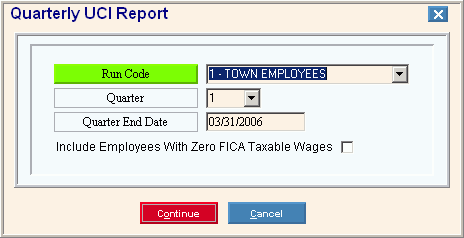
After selecting Print or Print to Screen, the following options are displayed. Quarterly UCI Report Window Example:
|
|
To include a specific group of employees in the report, click the Run Code in the list. (1.0 numeric) Tip: To specify all employees, click 3 - All Run Codes. |
|
Quarter |
To specify the quarter of the year to include in the report, click one of the options in the list. (1 through 4) |
Quarter End Date |
Enter the end date of the quarter included in the report or press [TAB] to accept the default date. (MM/DD/CCYY) |
Specify if you want to print employees with no FICA taxable wages: |
|
Print Page Totals |
To include totals on each page, click to check this box. To omit page totals, leave this box unchecked. |
|
To begin generating the report, click Continue. Keyboard shortcut: [ALT + o] To escape from the print routine, click
Cancel Keyboard shortcut: [ALT + c] |
Export Only Step |
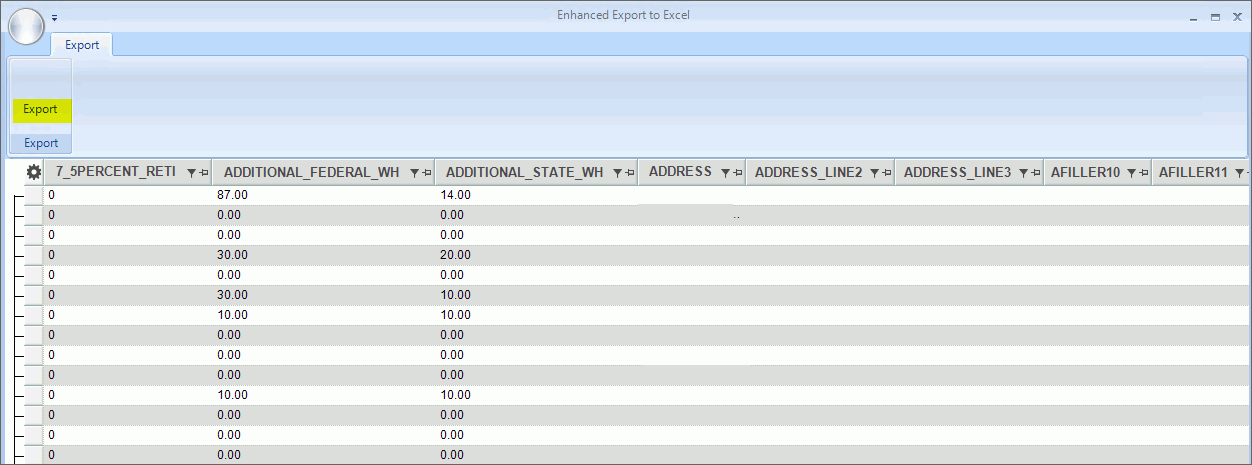
If Export Only was selected, the report will display in an Export to Excel window.
Click Export
Browse for the location to save the file and enter a name for the file. Click Save As to complete the file save. |


 .
.

 .
.