 Important:
Because the Monthly Retirement Report generates the retirement transactions,
you must run the Retirement Detail Report after
the Monthly Retirement Report.
Important:
Because the Monthly Retirement Report generates the retirement transactions,
you must run the Retirement Detail Report after
the Monthly Retirement Report.Retirement Detail Report Instructions
Use the Retirement Detail Report to print the retirement and insurance information including break-downs of the employee's share and the employer's share. For comparison purposes, you can use the same Report Selection parameters for this report as defined in the Monthly Retirement Report.
Important:
Because the Monthly Retirement Report generates the retirement transactions,
you must run the Retirement Detail Report after
the Monthly Retirement Report.
Tips:
This report is applicable only for the State of Maine.
Other retirement reports:
For your convenience, you can save up to nine sets of report criteria, which you can recall later.
For more information about running reports, see Print View.
At the Report Writer window, you can change the selection and sort options for the report. For more information, refer to the Report Writer Overview.
o see an example of the report, click Retirement Detail Report Sample.
Directions:
To open click Reporting
from the Menu. Then
click Government Reports and
click Retirement Detail Report.
Or, use the keyboard
shortcut: [ALT] [e] [g] [d].
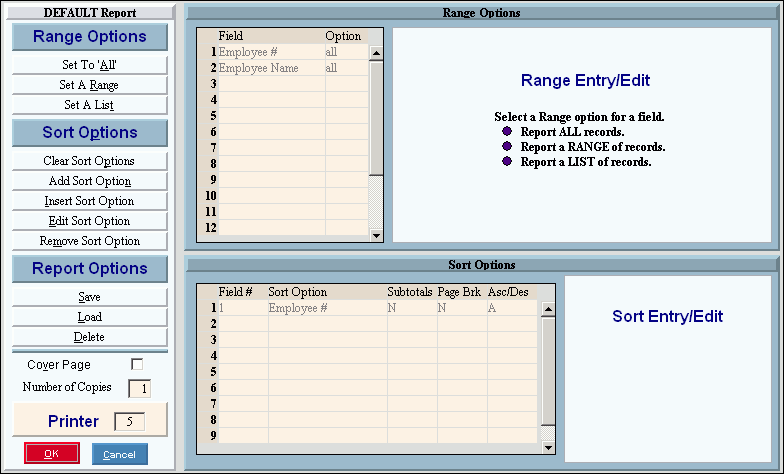
Retirement Detail Report Writer Window Example:
Retirement Detail Report Prompt Options
|
|
Report Writer Range & Sort |
You can make changes to the Report Writer range and sort as needed. For more information on changing the range or sort options, see Report Writer Overview. |
Additional Options |
To include a cover page, check the Cover Page box. To include a detail separator, click to check the Detail Separator box. To omit the detail separator, leave the box unchecked. |
|
To generate the report, click Print, or press [ENTER]. Keyboard shortcut: [ALT + p] To print to the Print
View window, click Print
View To escape from the print
routine, click Close |
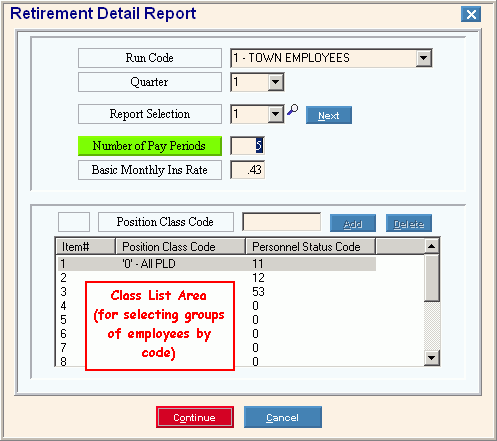
After selecting to print or print to screen, a screen with additional options is displayed, Retirement Detail Report Window Example:
|
|
To include a specific group of employees in the report, click the Run Code in the drop-down list. (1.0 numeric) Tip: To specify all employees, click 3 - All Run Codes. |
|
Quarter |
To specify the quarter of the year to include in the report, click one of the options in the drop-down list. (1 through 4) |
Report Selection |
To specify a selection number for an existing or new group of report criteria, click the number in the drop-down list or simply type the number in the field. (1-9) Tips:
|
|
To create another version of the report for the same Report Selection number, click Next. Keyboard shortcut: [ALT + n] Tips:
Example: You may want to print two versions of the report for Run Code 1 - one for 4 pay periods and one for 2 pay periods. First enter Report Selection 1 and fill in the fields including 4 pay periods and run the report. Then specify Report Selection 1 and click Next; fill in the fields including 2 pay periods. |
Enter the Number of pay periods to include in this report. (1.0 numeric) |
|
Basic Monthly Ins. Rate |
Enter the basic monthly insurance rate. (1.2 numeric) |
Print Page Totals |
To include page totals, check this box. To omit page totals, leave this box unchecked. |
Codes List Note: To select the gross wages for certain groups of employees for the report, enter the applicable Position Class Codes and Personnel Status Codes. All criteria entered in a row must be matched for the employee to be included in the report (works like the Boolean logic "AND" operator). |
|
General Directions |
1. To change the value for a field in a line item, click the field in the applicable line. 2. Confirm that you selected the right field by checking the Item # and the label for the entry field. 3. Enter the new or changed value in the entry field. 4. Click Add
5. Repeat for each field you want to update. |
Item # |
Displays the number of the selected line item. Tip: To enter values for a specific line, click to highlight a field in the applicable line of the list. |
Entry Field |
The label for the entry field changes according to which field you clicked in the Class List.
|
|
To update a changed field in the selected line, click Add or press [ENTER]. Keyboard shortcut: [ALT + a] |
|
To clear the value for a field in the selected line, click Delete Selected Code. Keyboard shortcut: [ALT + d] |
Class List |
The Class List displays the following fields in each of the 14 rows:
|
|
After entering the report prompts, click Continue to begin generating the report. Keyboard shortcut: [ALT + o] To escape from the print routine, click
Cancel Keyboard shortcut: [ALT + c] To delete all of the report prompt
values for the currently displayed Report Selection, click Delete Selected Code Keyboard shortcut: [ALT + e] |


 .
.


 to make the change.
 .
.