Employee Accruals Setup
INVISION Payroll Employee Accruals lets you track additional pay and leave amounts that employees earn. You can post this accrual information to employee records in INVISION Payroll. To set up for processing employee accruals you will build accrual tables as needed. You will also build accrual groups and assign accrual rules to the groups. Then apply groups and rules to the employees.
Note: For directions on processing employee accruals, see Employee Accruals.
Build Accrual Tables if applicable
Build Accrual Groups and Assign accrual rules to the group
Assign groups and rules to employees
Directions
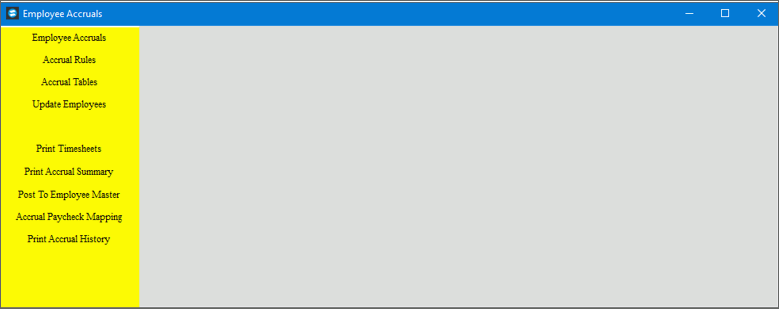
To start, go to Payroll --> Daily Work --> Employee Accruals and the following screen is displayed.
Employee Accruals Setup Prompts
|
|
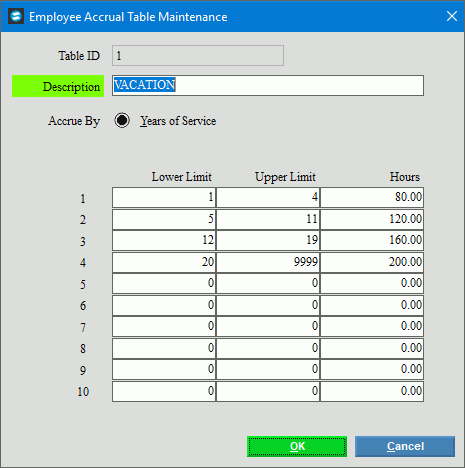
Building Accrual TablesUse Accrual tables to set up the factors that determine how employees in a group accrual the benefit. From Employee Accruals select Accrual Tables and the following screen is displayed.
|
|
Description |
Enter a description for the table. |
Accrue By |
This is set to years. |
Lower Limit and Upper Limit Hours |
Enter the lower value and the upper value for which the benefit is accrued. Enter the hours to accrue for this range. Repeat entering the lower and upper limits along with the hours until the accrual values are entered. |
OK
|
To complete the entries, click OK. |
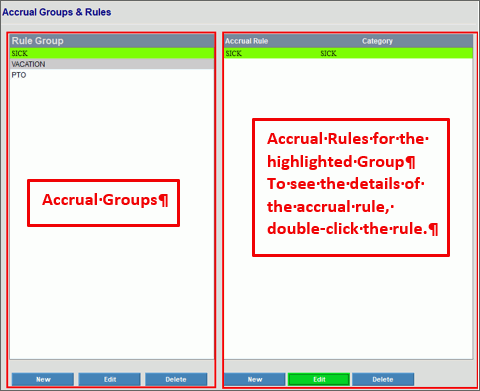
Building Accrual Groups and RulesAfter the accrual tables are set up you can create groups and add the individual accrual tules that your organization offers like sick, vacation, holiday, personal, etc to each group. An accrual rule can be based on hours, table values or can be manually maintained. From Employee Accruals select Accrual Rules and the following screen is displayed.
|
|
Building a Group |
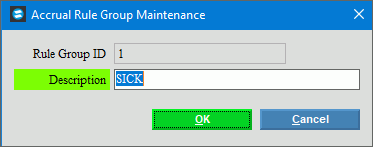
To create an accrual group, click New at the bottom left of the Accruals Rules screen and the following window is displayed. Enter a description for the accrual group and then click Ok. After clicking OK,
|
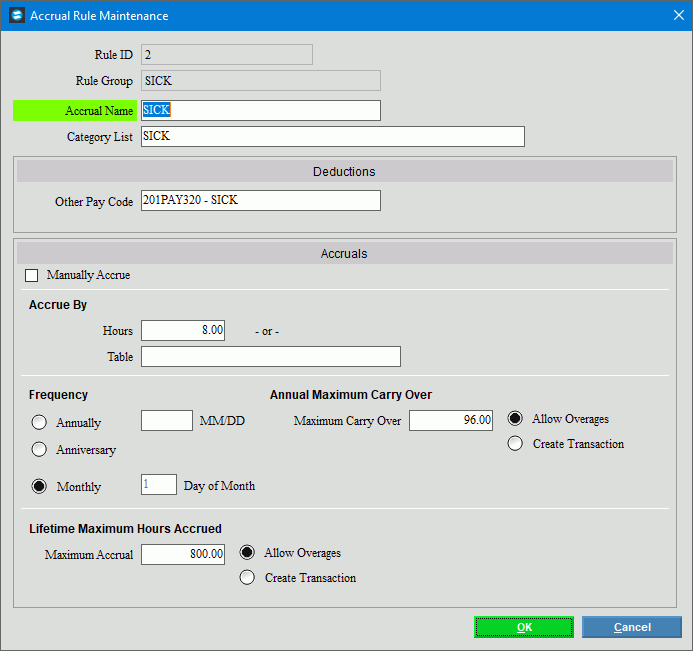
Building Rules for the GroupBuild rules for the group. A group can have multiple rules. Select
the accrual group to which the rules are for and then from the
right side of the screen, select New
|
|
Accrual Name |
Enter the name of the accrual rule. The accrual rule group name displays for your reference. |
Category List |
If this is sick or vacation type accrual enter SICK or VAC. This allows the employee to be updated in Payroll in addition to the Employee Accruals. |
Other Pay |
Select the other pay to use in Check Entry to pay the employee with their accrued benefit. |
Accrue By Hours, Table, or Manual |
There are 3 Accrue by options:
|
Frequency |
There are 3 options for how frequently time should be accrued:
|
Maximum Carry Over |
If there is an annual maximum carry over, enter it here. |
Allow Overages |
If you allow annual overages, click to select Allow Overages. |
Create Transactions |
If annual overages are not allowed and instead, transactions should be generated for overages, click to select Create Trans. |
Lifetime Maximum Hours Accrued |
There are 3 options:
|
|
To save your entries, click OK. |
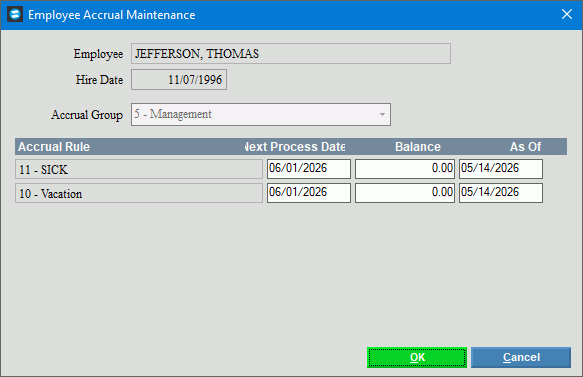
Assigning Accruals to EmployeesYou must assign an accrual group that has the desired accruals rules to employees for the employee to accrue benefits. Note: You can
later change an employee to a different accrual group by selecting
Change Group To add an accrual to an employee, from the Employee Accruals screen, click to select the employee from the Employee list on the left. Click New All
1. The employee’s name and hire date are displayed from their employee record. 2. From the Accrual Group list, select the Accrual Group to assign to the employee. 3. The accrual rules, next process date, and balance display based on the accrual group selected. 4. To finish, click OK. |
|



 .
.