Employee Accruals
INVISION Payroll Employee Accruals enables organizations to efficiently track additional pay and leave balances earned by employees. Employee accruals represent amounts owed to employees for time they have already worked but have not yet been paid for, due to the typical delay between the end of a pay period and the actual pay day. These accruals are critical for blance sheet reporting, as they highlight financial obligations even when the cash remains in the bank. Additionally, they provide valuable insights for internal accounting by reflecting payroll expenses for a specific period. The Employee Accruals tools allow you to seamlessly post accrual data to employee records in INVISION Payroll.
Employee Accruals is driven by rules you define. You can create different rule sets for each type of employee group or contract your organization supports, such as front office, DPW, police, fire, and union staff. These rules determine how to update each employee’s accruals and other pay fields, ensuring accuracy and compliance with organizational policies.
Note: INVISION Payroll offers 2 separate accrual tools. There are basic accruals for vacation and sick that are accrued based upon each pay period. They are referred to as Payroll Accruals and directions for this type of accrual can be found here. The second accrual tool, referred to as Employee Accruals is more flexible, offers more types of accruals and multiple ways for the time to be accrued. Instructions for this accrual tool are provided below.
Note: For directions on setting up Employee Accruals, see Employee Accruals Setup.
1. Assign accrual groups to new employees, when needed
2. Print time sheets, if applicable
3. Enter manual accruals
for employees, when applicable
After the Payroll cycle is completed it’s important to record as time taken
any accrual time paid to an employee through Payroll.
4. Run Update Employee Accruals to create accrual transactions and update accrual accounts.
5. Print an Accrual Summary.
6. Run Post to Employee Masters to update employee masters in Payroll with the vacation and sick time accrued in the Employee Accruals.
In Payroll
Check Entry, enter employee other pay assigned to the accrual.
Note: Settings can alert
you or prevent the other pay, if the employee's other pay will exceed
their accrual available.
Run the Payroll Post to finalize the payroll cycle.
Enter transactions in Employee Accruals to record (typically as a withdrawal) the accrued time that was taken.
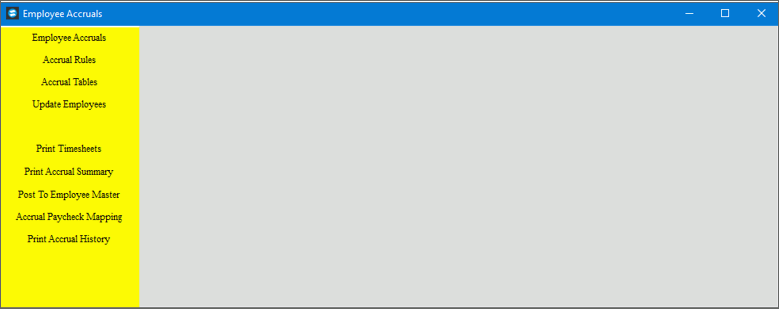
To start, go to Payroll --> Daily Work --> Employee Accruals and the following screen is displayed.
Processing Employee Accruals Prompts
|
|
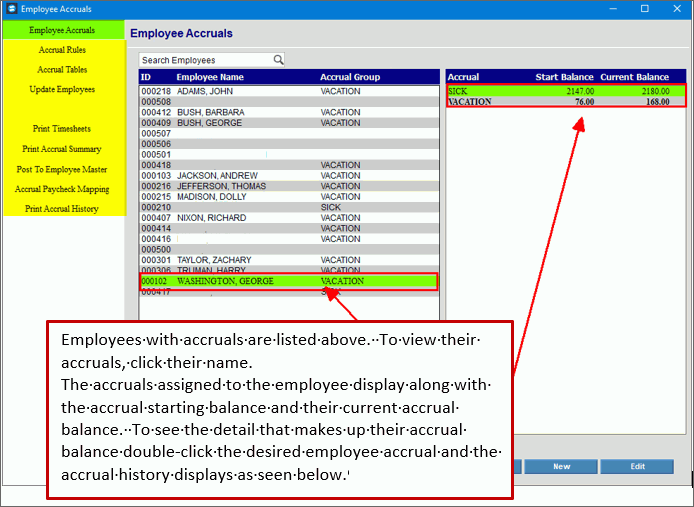
Viewing Employee AccrualsUse Employee Accruals to view employee accrual balances, assign accrual groups and rules, and enter beginning balances when needed. You can also create or edit manual accrual transactions and create transactions to record time taken for accrual time paid through Payroll. In addition, employee accrual transactions can be printed or exported to Microsoft Excel for reporting and analysis.
From Employee Accruals select Employee Accruals and the following screen is displayed.
|
|
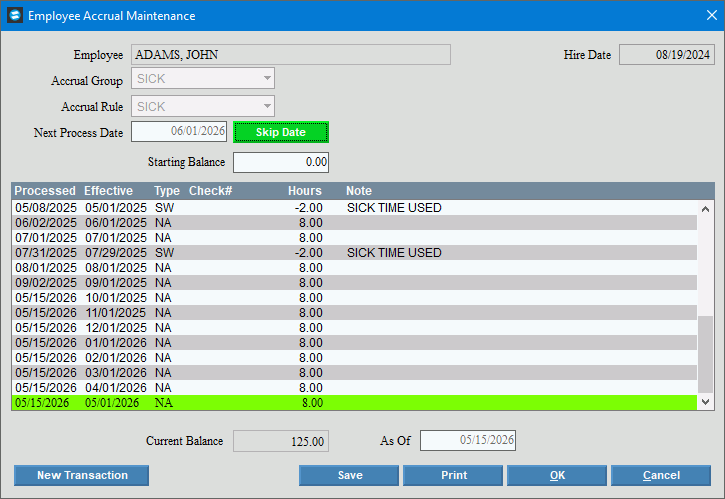
Viewing Accrual History |
The employee Accrual Maintenance displays the accrual transactions that make up the employee’s balance. Double-click the desired employee accrual to see the historical details of the accrual as shown below.
|
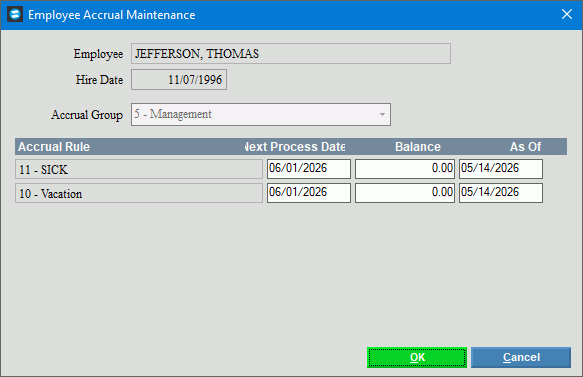
Adding Accruals to EmployeesYou must assign an accrual group that has the desired accruals rules to employees for the employee to accrue benefits. Note: If you want
to later change an employee to
a different accrual group, select Change Group To add an accrual to an employee: 1. From the Employee Accruals screen, click to select the employee from the Employee list on the left. 2.
Then click New All
3. The employee’s name and hire date are displayed from their employee record. 4. From the Accrual Group list, select the Accrual Group to assign to the employee. 5. The accrual rules, next process date, and balance display based on the accrual group selected. 6. To finish, click OK. |
|
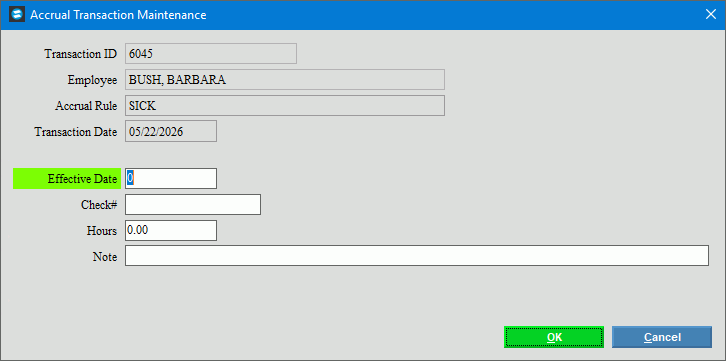
Entering Time Taken to Employee Accruals and Manual Accrual TransactionsYou
can enter a manual accrual or to record time taken for any accrual
time paid through Payroll using Employee Accrual Maintenance.
select New Transaction
1. Enter an effective date, which is the date of the accrual or the accrual taken. 2. Enter the check number if applicable. 3. Enter the number of hours as a negative amount for a withdrawal transaction and as a positive amount for a deposit transaction. 4. Enter a note if applicable. 5. Then click OK to complete your entries. |
|
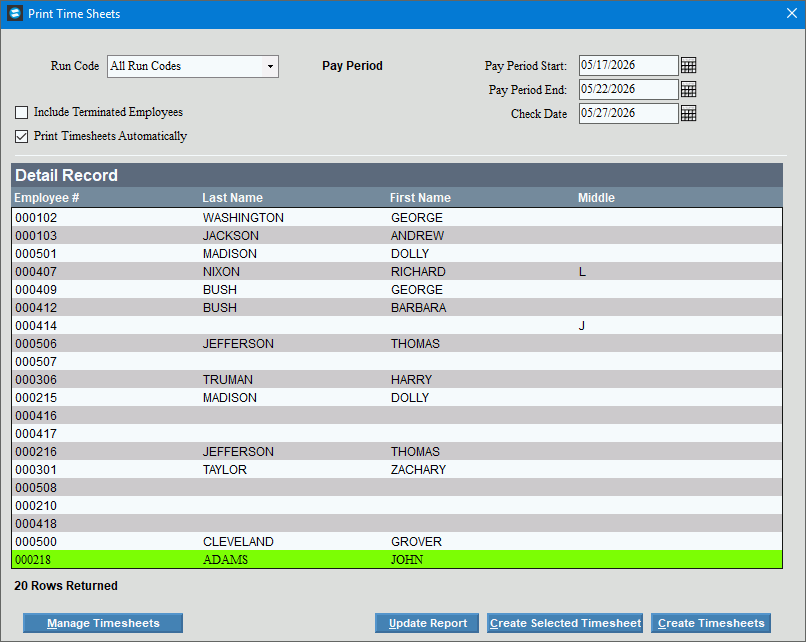
Generating Time SheetsUse Time Sheets to generate and print time sheets for all or specified employees. Time sheets will include the employee’s name and pay period dates. You can create your own custom time sheet form to use for generating the time sheets. This routine can also save a copy of the generated time sheets to a directory so that you can recall them later. From Employee Accruals, select Time Sheets and the following window is displayed.
1. Select the run code for the time sheets. 2. Enter the start and end dates for the pay period. The dates are required. 3. Enter the date for the check date. The check date is required. 4. If you want to include terminated employees, check the Include Terminated Employees box. 5. To generate and automatically print timesheet, click to check the Print Timesheets Automatically box. Otherwise, leave this blank to simply generate the timesheets. 6. Update Report: To load the employees that are included in the specified run code, click Update Report. 7. Create
Timesheets or
Create
Selected Timesheets
|
|
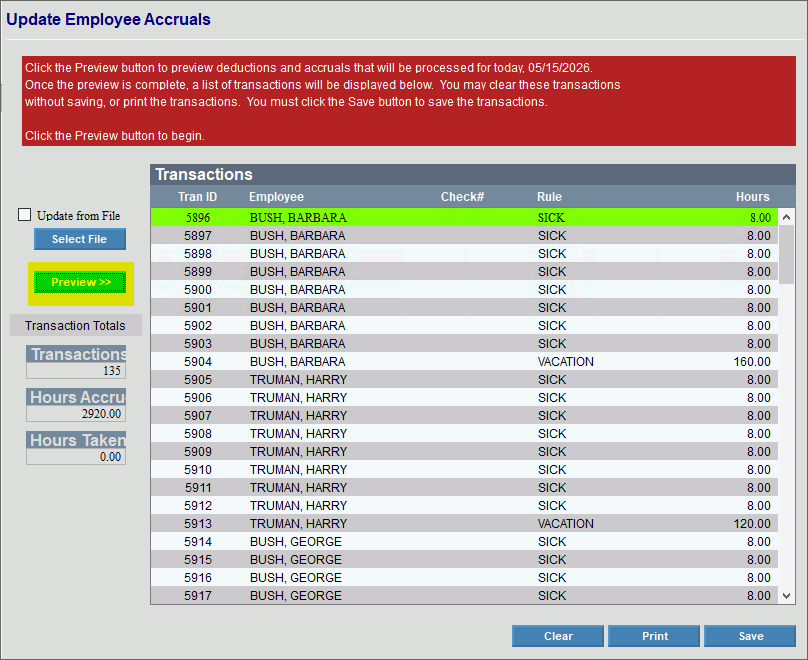
Updating Employee Accruals with Accrued TimeUse Employee Update to create the employee accrual transactions for the time the employees’ accrued during the period and then, use the transactions to update the hours available on the employees’ accrual records. Accrual transactions are created for employees’ accrued time based on their accrual group, accrual rules and the accrual effective date. First, preview the data that will be processed and updated, and if it does not look correct, you can clear the information without updating any balances. When you are satisfied that the information is correct click save, which updates the employee’s accrual information and adds the details to accrual history. You also have the option of importing accrual information from a .csv file and creating the accrual transactions from this. Important: This routine will mark each employee that has been updated to prevent them from double posting. After employees are updated, you can see the updated balances in Employee Accruals Maintenance and see their accrual detail in the Accrual History Print.
From Employee Accruals select Update Employees and the following screen is displayed. Click
Preview If the transactions and accrual amounts look correct, click Save to update the employee accrual records with the accrual amounts. After clicking save, you can view the updated accrual information from the Employee Accrual Maintenance window. If the Transactions look incorrect, click Clear and return to the Accrual Table or Employee Accrual maintenance to resolve the problem.
|
|
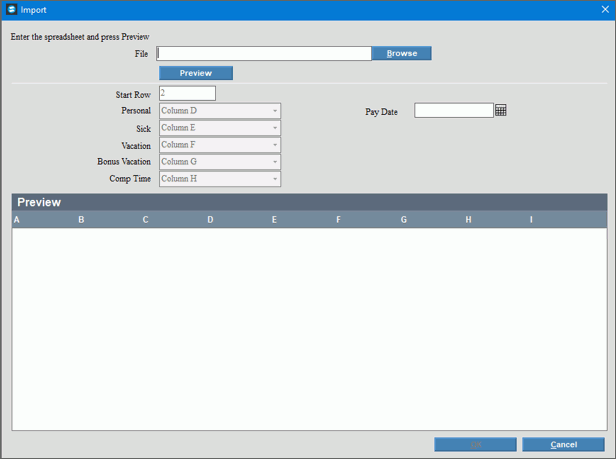
Import Accruals from a File |
There is an option to import employee accrual information from a spreadsheet that is a csv file format. To import the employee accrual information from an external file, check Update From File box. Next, click Select File and the following screen is displayed where you can select the file from which to import.
|
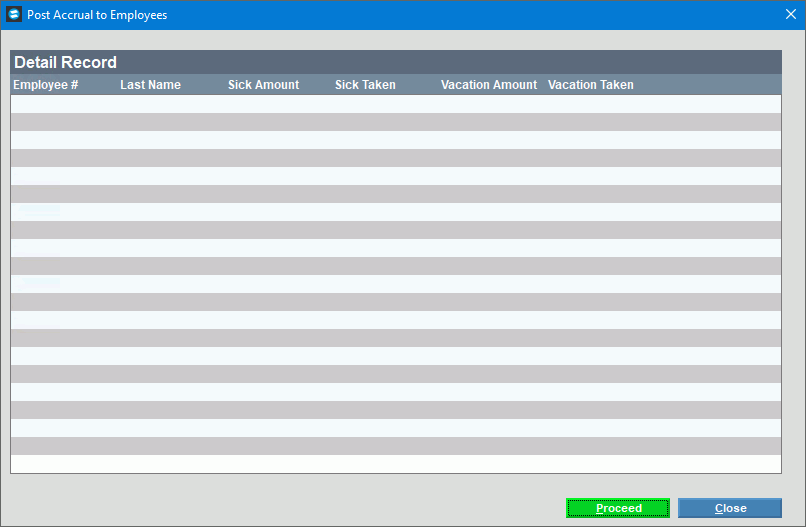
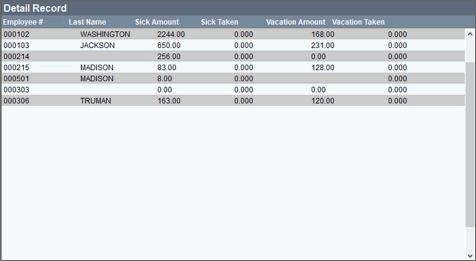
Post to Employee MastersUse Post to Employees to update the vacation and sick Hours/Days Accrued on employee master accounts with the employee sick and vacation accruals from the Employee Accruals. From Employee Accruals, select Post to Employee Masters and the following screen is displayed. To begin, click Proceed.
The employee accruals that are posted to the Employee masters are displayed as shown below.
|
|
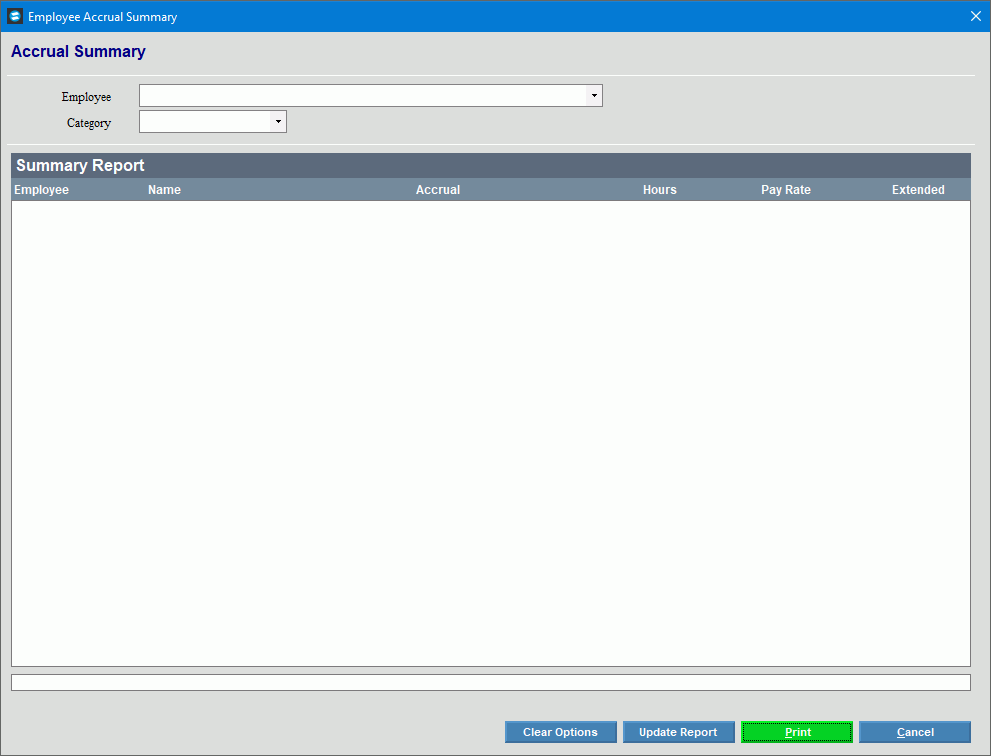
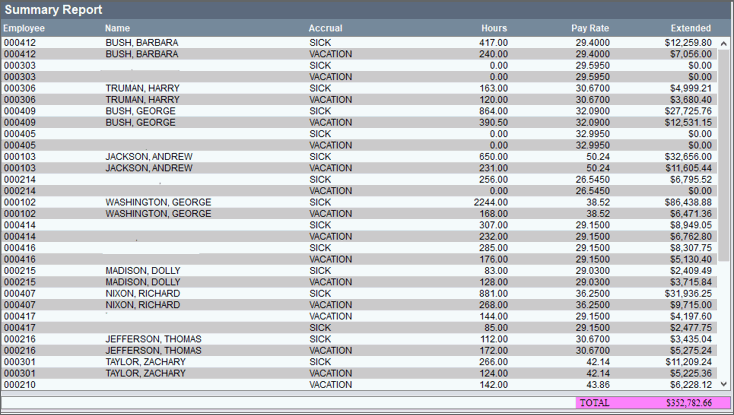
Generating Accrual Summary ReportUse the Accrual Summary report to list employees and their accrual balances including hours, pay rate and dollar values. You can report all employees and all accrual categories or you can limit the report to a specific employee’s accrual information. In addition, you can print the report or transfer the report information to Microsoft Excel.
From Employee Accruals, select Print Accrual Summary and the following screen is displayed.
To generate the report:
Accrual Summary Report Example:
|
|
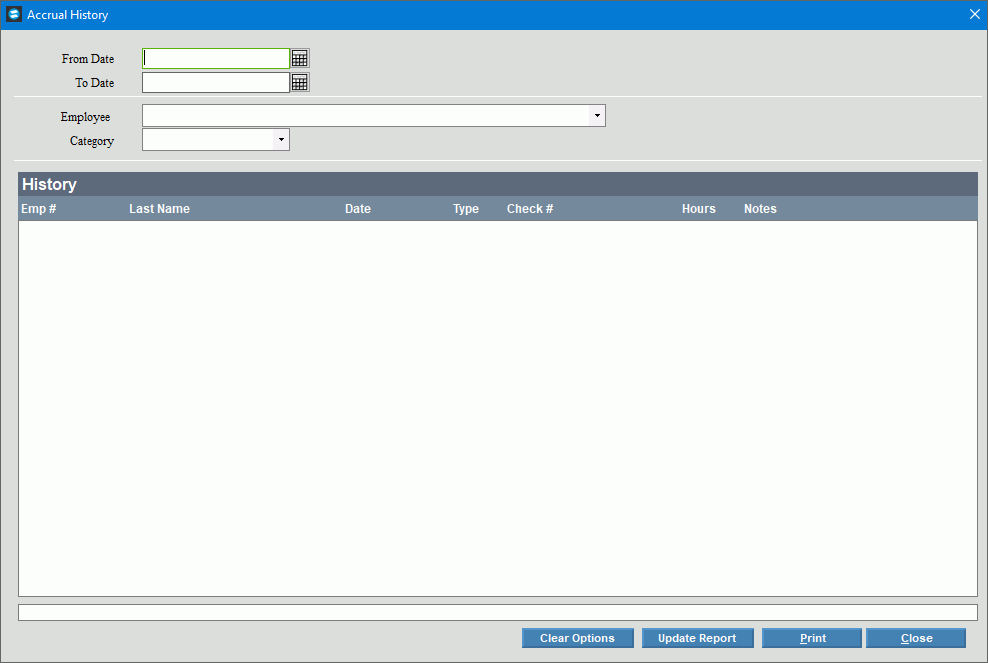
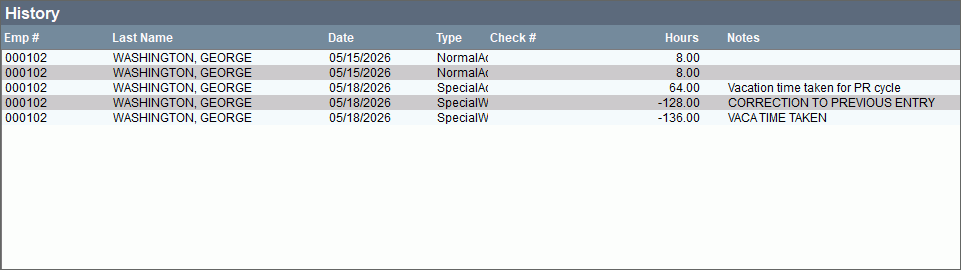
Accrual History ReportUse the Print Accrual History to report all or a specific employee’s accruals that they have earned and the accruals that they have taken for a given period. The Accrual History lists the accrual transaction details that make up an employee’s accrual balance. From Employee Accruals, select Print Accrual History and the following screen is displayed.
To generate an employee accrual history report:
Accrual History Report Example
|
|
 .
. 

 and the employee accrual transactions for this period are generated.