. The Verify Check Details
will be displayed. Click Close
to continue to the Edit Register options.
. The Verify Check Details
will be displayed. Click Close
to continue to the Edit Register options.Payroll Check Edit Register Instructions
Use the Payroll Check Edit Register to print the Register Reports and several Expense and Deduction Reports during the Payroll Run. Usually, you run the Payroll Check Edit Register after completing Payroll Check Entry and before printing payroll checks.
Tips:
Although the Payroll Check Edit Register reports are very similar to the Payroll Check Register reports, the timing is different. The Check Edit Register runs before printing payroll checks. However, the Payroll Check Register runs later - after printing payroll checks and provides options for additional reports (the Short Check Register and the Treasurer's Warrant).
Retain the check register reports for a complete audit trail.
For information about the sequence of routines, refer to the Payroll Runbook.
For an overview of the payroll registers, refer to the Check Registers Overview.
For more information about running reports, see Print View.
At the Report Writer window, you can change the selection and sort options for the reports. For more information, refer to the Report Writer Overview.
To see an example of a report, click one of the following...
Register Reports:
Expense and Deduction Reports:
Directions:
To open, from Payroll Processing, click Check
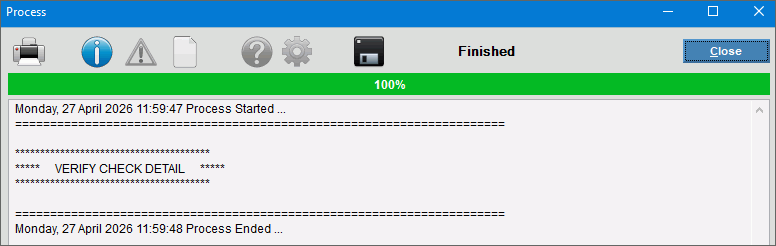
Edit Register . The Verify Check Details
will be displayed. Click Close
to continue to the Edit Register options.
Payroll Check Edit Register - Verify Check Details Example:
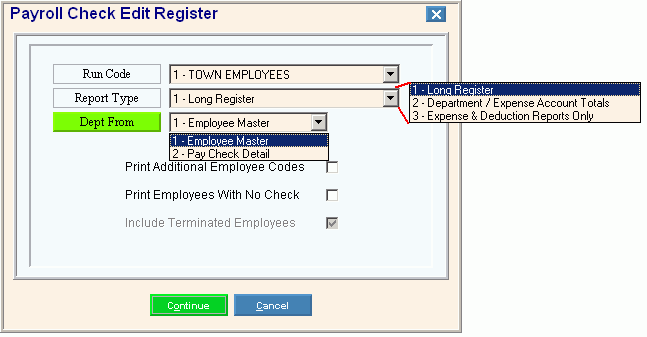
Payroll Check Edit Register Window Example:
Payroll Check Edit Register Options
|
|
Click the appropriate Run Code in the list. Tip: To print reports for all Run Codes at once, click All Run Codes. |
|
Report Type |
Click one of the following report types in the list.
|
Register Options |
|
Dept From |
Click one of the following options in the drop-down list to determine which files to use for retrieval of the Department Number.
|
Print Additional Employee Codes |
Select this option to include the following fields in the long check register: |
Print Employees with No Check |
Select this option to include employees who have no check in the long check register. Tip: NO CHECK appears next to the appropriate employee names on the report. |
Include Terminated Employees |
Select this option to include terminated employees in the long check register. Tips:
|
Totals Only |
Select this option to only report totals. Otherwise, leave this blank to include details as well as totals. |
3. Expense and Deduction Reports Options Tips: To prevent a report from printing, de-select the option next to the report name. To prevent all Expense and Deduction Reports from printing, click Print Without Additional Reports. The register reports will still print. For each report, enter the number of copies to print. (2.0 numeric) The default value is 1. For your convenience, your settings are retained, which are displayed the next time you run the reports. |
|
Scheduled Deduction Listings |
Select this option to print the Scheduled Deductions Listings, which print a separate report for each Scheduled Deduction Code, listing the employees' itemized deductions. |
ME State Insurance Deductions or State Retirement Deductions |
Select this option to print the retirement and insurance deductions report for the state. Tips:
|
Expense Account Totals |
Select this option to print the Expense Account Totals Report, which prints earnings and times (hours or days) for each employee, totaled by expense account. Tip: This report is typically only used by municipalities. |
FICA Gross Wage Report |
Select this option to print the FICA Gross Wage Report, which prints the FICA withholding amounts and the exemption amounts. |
Rate History Report |
Select this option to print the Rate History Report, which prints a list of employees whose review dates are approaching soon. Tips:
|
Employee Annuity Report |
Select this option to print the Employee Annuity Report, which prints deduction amounts for annuities. Tips:
|
Employee Totals Report |
Select this option to print the Employee Totals Report, which prints total earnings and times on a single line for each employee. |
Tax Deposit Report |
Select this option to generate the Tax deposit Report, which reports the Federal, FICA, Medicare withholding amounts so you can easily determine the necessary the deposit leading up to the 941 report for the quarter. |
Department Totals |
Click one of the following options in the drop-down list for the Department Totals Register, which prints earnings and times for each employee, totaled by department:
Note: Do not confuse this report with the Department Totals Report, which is run from the Earnings Reports Menu. |
Bank Deposit Report |
Click one of the following options in the drop-down list for the Bank Deposit Report, which prints direct deposit amounts for each Direct Deposit Transaction Code:
|
Sort by Name |
To sort the reports by Employee Last Name instead of by Employee Number check the Sort by Name box. Tip: Depending on the report, this may be applicable only to a secondary sort. For example, some reports are first sorted by Department Number, then by Employee Name or Employee Number. |
|
To generate the Register reports and the Expense and Deduction reports, click Print, or press [ENTER]. To generate only the Register Reports and to omit printing all of the Expense and Deduction reports, click Print without Additional Reports. To escape from the print routine without
printing any of the reports, click the window Cancel
|
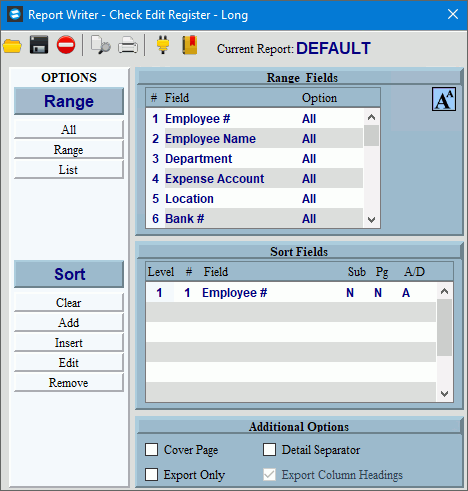
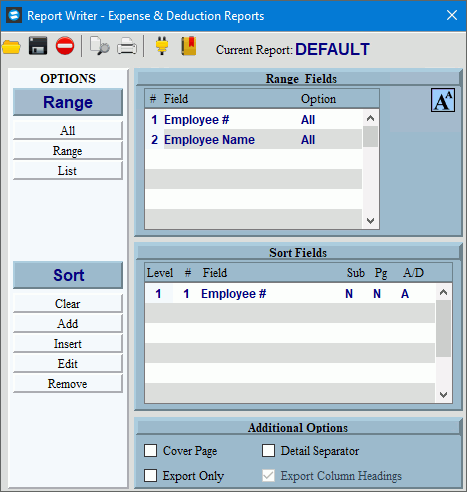
Report Writer Prompts Next, the Report Writer screen is displayed. The options will vary slightly based on the type of register you are generating.
|
|
Report Writer Range & Sort |
You can make changes to the Report Writer range and sort as needed. For more information, see Report Writer Overview. |
Additional Options |
To include a cover page, check the Cover Page box. To include a detail separator, click to check the Detail Separator box. To omit the detail separator, leave the box unchecked. To only export the report, check the Export Only box. See below for instructions. If you select Export Only, select Export Column Headings if you want to include column headings in the Excel file. |
|
To generate the report, click Print, or press [ENTER]. Keyboard shortcut: [ALT + p] To print to the Print
View window, click Print
View To escape from the print
routine, click Close |
Export Only |
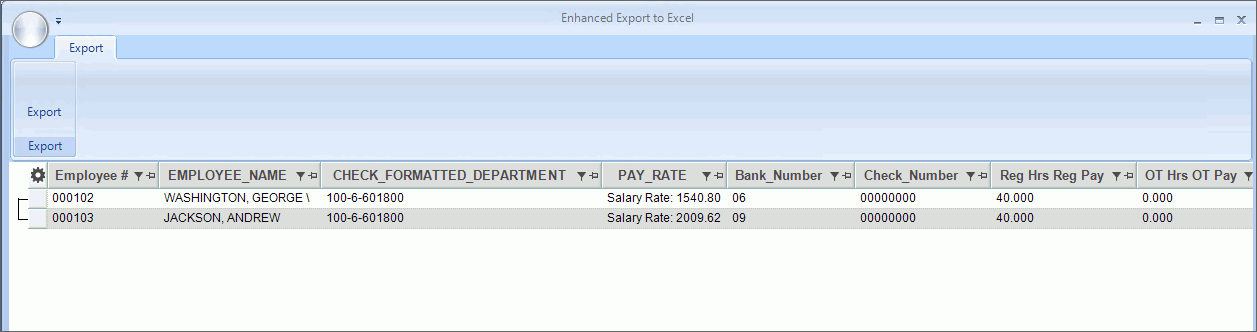
After selecting Export Only the report will display in an Export to Excel window.
Click Export
Browse for the location to save the file and enter a name for the file. Click Save As to complete the file save. |




 .
.


 .
.