 and
the following screen is displayed.
and
the following screen is displayed.Update Prenote Codes
The Update Prenote Codes process automatically changes prenote codes to send codes for direct deposits when the prenote date is reached. The routine also sets the prenote codes update date. Prenote codes indicate that direct deposits are in the prenote testing phase. Send codes indicate the direct deposits are ready for live processing. In addition, any scheduled deduction amounts in prenote are changed to zero and you are notified of the change. Confirm the amounts on the Payroll Check Edit Register.
Tips:
This process is applicable only if you are using direct deposit.
If you attempt to run Update Prenote Codes out of sequence you will be alerted. For more information about timing, refer to the Payroll Runbook. You can bypass the message if needed.
The program alerts you if you attempt to run Update Prenote Codes more than once. You can bypass the message if your intention is to rerun the update process.
If the transaction code is a Send Code and the Prenote Date is missing or less than 10 days before the Transmission Date, the program uses the PRE-NOTE Table to automatically change the Send Code to a Prenote Code.
For more information, refer to the topic, Advanced Feature - Setting Up Direct Deposit.
Directions:
From Payroll Processing, select Update
Prenote Codes and
the following screen is displayed.
Update Prenote Codes Window Example:
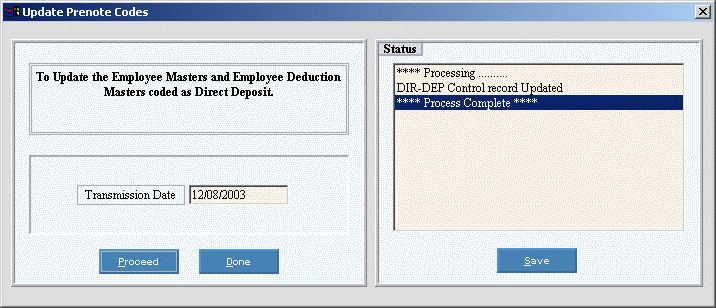
Update Prenote Codes Options
|
|
Enter the Direct Deposit Transmission date, which contains the date you plan to transmit the direct deposit file to the bank. (MM/DD/CCYY) Note: The Transmission date, usually today's date, must be a predetermined number of lead days before the Direct Deposit Effective Date, so the bank has enough lead time to process the transactions. The DD-Days Table controls the number of lead days required (usually two). |
|
|
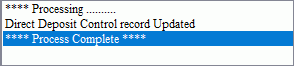
To start the process, press [ENTER] or click Proceed. Keyboard shortcut: [ALT + p] You will then see the status messages in the Status area. |
Update Status Save Status Messages |
The Status area displays processing messages for your review. Confirm that process complete is displayed before closing the window.
For an audit trail, archive the messages in the status area by saving them to a text file, as described below. 1. Click Save
Status Messages 2. At the Save as window, follow the normal save procedure: a. Navigate to the appropriate location and open the folder for the saved file. b. Enter a new file name,
if desired. c. Click Save to complete your entry. |
|
When you see the Process Complete message in the Status area, press [ENTER] or click Done. Keyboard shortcut: [ALT + d] Note: Be sure to click Save Status Messages before clicking Done, to archive the status messages. |


 .
Keyboard shortcut:
.
Keyboard shortcut: 