Employee HR Field Maintenance
Use Employee HR Field Maintenance to create user-defined fields that are used to maintain employee HR information during Human Resources Window of Employee Master Maintenance.
Directions:
To open:
1. Click Payroll from the Menu Bar.
2. Click Employee File Maintenance.
3. Click Human
Resources Fields.
Tip: Or, use the keyboard
shortcut: [ALT] [p] [e] [h].
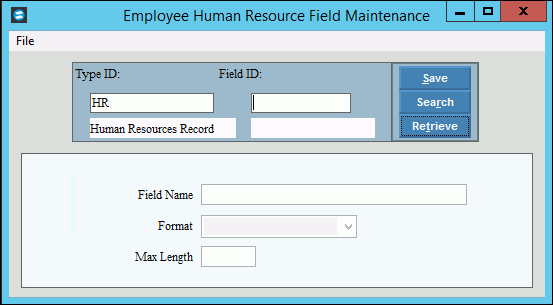
Employee Human Resources Fields Window Example:
Employee Human Resource Fields Maintenance Prompts
|
|
Type ID |
The program assigns HR as the Type ID. (up to 10 characters) Tip: You can not maintain this field. |
To create
a new HR field, enter the new Field
ID and click Retrieve
Or, leave the Field ID blank and click New. To look for a field ID, click Search Tip:
To indicate that you are building a new HR Field, New |
|
|
To update the new or changed information, click Save or press [ENTER]. Keyboard shortcut: [ALT + s] |
|
|
Enter the name of the HR field. (up to 30 characters) |
|
To specify the format of the field, click one of the following options in the drop-down list:
|
|
Enter the maximum number of characters allowed for this HR field. (4.0 numeric) Tip: This field appears only if the format is Text. |
|
Editing an HR Field |
1. Enter the Field ID and click Retrieve
2. Position the pointer to the information that you want to change. 3. Enter the changes. 4. To complete the edit
process, click Save |
Deleting an HR Field |
1.
Enter the Field
ID and click Retrieve
2. Click File
from the Menu, and
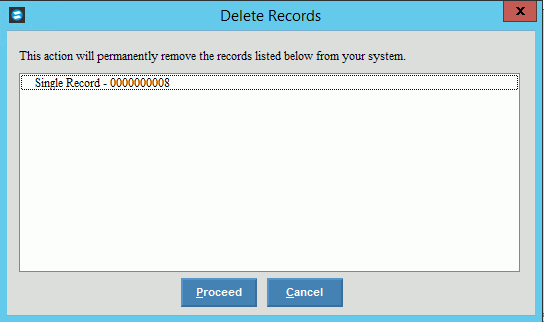
next click Delete. 3. At the Delete prompt, click Proceed to delete the field, or click Cancel to escape from the delete routine. Example:
Note:
After you click Proceed, you will see the following message
on the Status Bar. |


 and then select the field from the list.
 displays near the Field ID. Default entries display and
the first field is
displays near the Field ID. Default entries display and
the first field is 
 CAUTION: To avoid losing
data, you must save new or changed information.
CAUTION: To avoid losing
data, you must save new or changed information.