To see directions for opening the Post to Vendor Transaction Files, click More.
-
Click Payroll from the Menu Bar, and next click Daily Work; then click Post to Vendor Transaction Files.
-
Or, use the keyboard shortcut: [ALT] [p] [d] [v].
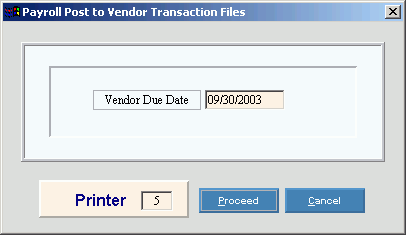
At the prompt window, choose the selections. To see the prompt options, click More.
Example:
|
Post to Vendor Transaction Files Prompt Options Tip: To see more information about a field, click the hyperlink for the field name. | |
|
Enter the Date to be assigned as the due date for all of the transactions to be processed by the Vendor Invoices and Checks feature. (MM/DD/CCYY. Slashes are optional.) | |
|
Printer |
Displays the default printer number. For more information, see Printing Options. |
|
|
To run the process and generate the report, click Proceed, or press [ENTER] if the button is in focus. Keyboard shortcut: [ALT + p] |
|
|
To escape from the routine, click Cancel, or press [ENTER] if the button is in focus. Keyboard shortcut: [ALT + c] |


To see the report sample, click More.

