Period End Clear Process
Use the Period End Clear routine to clear monthly, quarterly, and yearly totals for earnings, withholding amounts, deductions, and other pays. You can choose one of the following types of clear to perform: Calendar, Contract, Fiscal, Specific Deduction, or Specific Other Pay. You can also specify one of the following options for each type of clear: Month End, Month/Quarter End, or Month/Quarter/Year End.
Tips:
NDS recommends running a backup before any Month, Quarter, or Year End process.
For information about the timing of Year End clear, see the Year End Runbook.
To see an example of the report, click Period End Clear Process Report.
Directions:
To open click Utilities
from the Menu. Then,
click Month/Qtr/Year End Clear and
click Period End Clear.
Or, use the keyboard
shortcut: [ALT] [t] [m] [p].
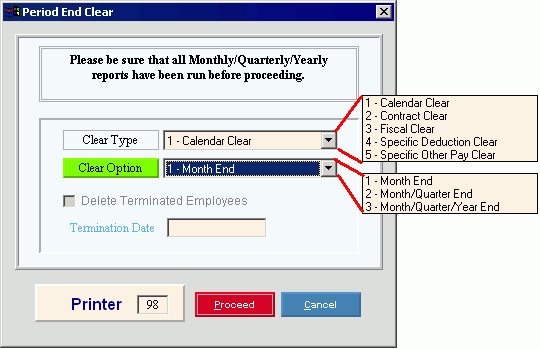
Period End Clear Window Example:
Period End Clear Options
|
|
Clear Type |
To specify the type of clear to perform, click one of the following options in the drop-down list: |
1-Calendar Clear: Clears the following information (excluding contract and fiscal year earnings): Employee Totals; Employee Weekly Totals; Employee Totals - Quarterly; Deduction Master Totals with a Deduction Closing Period Flag of 1 - Calendar Clear; Employee Deduction Totals; Other Pay Master Totals; Department Totals; and Employee Other Pay Totals with a OP Closing Period Flag of 1 - Calendar. Notes:
|
|
2-Contract Clear: Clears the Employee Contract Earnings Totals; all Employee Deduction Totals; and Employee Other Pay Totals with a Closing period Flag of 2 - Contract. Note: Run the Contract Clear at each contract period end, if you have contract employees. |
|
3-Fiscal Clear: Clears the Employee Fiscal Earnings Totals; all Employee Deduction Totals; and Employee Other Pay Totals with a Closing Period Flag of 3 - Fiscal Clear. Note: Run the Fiscal Clear at each fiscal period end. |
|
4-Specific Deduction Clear: Clears the Employee Deduction Totals and Deduction Totals for the specified deductions with a Closing Period Flag of 4 - Specific Ded Clear. You are then prompted to enter the specific Deduction Codes. Tip: For information about entering the Deduction codes to clear, see the section for Specifying Deduction Codes and Other Pay Codes below. |
|
5-Specific Other Pay Clear: Clears the Employee Other Pay Totals and Other Pay Totals for other pays with a Closing Period Flag of 4 - Specific. You are then prompted to enter the specific Other Pay Codes. Tip: For information about entering the Other Pay codes to clear, see the section for Specifying Deduction Codes and Other Pay Codes below. |
|
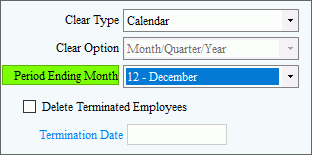
1 - Calendar Clear If Calendar Clear is selected, the following options are displayed.
|
|
Period Ending |
If Calendar Clear is selected, Period Ending is displayed. Choose the appropriate month for running the period end clear. The appropriate type of clear - month, quarter or year is selected for you based on the month you specify. 1. Month End: Clears only the monthly totals. This is selected if you choose January, February, April, May, July, August, October, or November. 2. Month/Quarter End: Clears the monthly and quarterly totals. This is selected if you choose March, June, or September. 3. Month/Quarter/Year End: Clears the monthly, quarterly, and year end totals. This is selected if you choose December. |
Delete Terminated Employees |
To specify if you want to delete terminated employees:
Tip: This field is active only if you specify the Calendar Clear Type and choose December as the Period Ending. |
To specify which terminated employees to delete, enter the Termination Date. All employees with a Date of Termination on or before the specified date are deleted. (MM/DD/CCYY century and slashes optional) Tip: This field is active only if you specify the Calendar Clear Type and choose December as the Period Ending, and you check the Delete Terminated Employees box. |
|
|
To run the routine, click Proceed, or press [ENTER]. Keyboard shortcut: [ALT + p] To escape from the routine, click Cancel Or, click Close
|
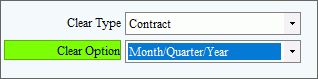
2 - Contract Clear If Contract Clear was selected, then Clear Option is displayed.
|
|
Clear Option |
Choose Month / Quarter/ Year option for clearing Contract Earnings Totals; all Employee Deduction Totals; and Employee Other Pay Totals with a Closing period Flag of 2 - Contract. Then click Proceed to begin. |
|
To run the routine, click Proceed, or press [ENTER]. Keyboard shortcut: [ALT + p] To escape from the routine, click Cancel Or, click Close
|
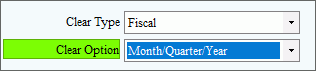
3 - Fiscal Clear If Fiscal Clear is selected, then the Clear Option is displayed.
|
|
Clear Option |
Choose Month / Quarter/ Year option for clearing the Employee Fiscal Earnings Totals; all Employee Deduction Totals; and Employee Other Pay Totals with a Closing Period Flag of 3 - Fiscal Clear. Then click Proceed to begin. |
|
To run the routine, click Proceed, or press [ENTER]. Keyboard shortcut: [ALT + p] To escape from the routine, click Cancel Or, click Close
|
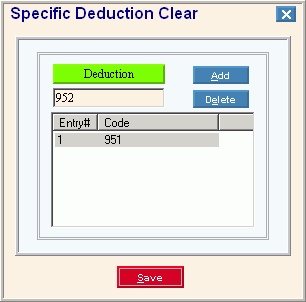
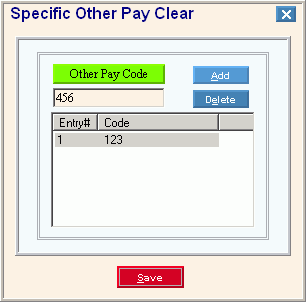
4 - Clear Deductions and 5 - Other Pays After selecting 4 - Clear Deductions or 5 - Clear Other Pays the following screen is displayed. Deductions and Other Pays to clear must be set with a Closing Period Flag of 4 - Specific Ded Clear or Specific Other Pay Clear or they will be rejected when you click Add. Below are the directions for entering a specific Deduction Code and entering a specific Other Pay Code.
|
|
Code |
To add a Deduction Code or Other
Pay Code to the list of codes to be cleared, enter the Code or
click Search |
|
To add the entered Deduction Code or Other Pay Code to the list of codes to be cleared, click Add. Keyboard shortcut: [ALT + a] |
|
To remove a Deduction Code or Other Pay Code from the list of codes to be cleared, click to highlight the code, and then click Delete. Keyboard shortcut: [ALT + e] |
|
To save the list of codes to be cleared, click Save or press [ENTER]. The window closes and the Period End Clear Process prompt displays. Keyboard shortcut: [ALT + s] Tip: The list of codes is blanked out the next time you run the Period End Clear Process. |
|
To run the clear specific deductions or clear specific other pays routine, click Proceed, or press [ENTER]. Keyboard shortcut: [ALT + p] To escape from the routine, click Cancel Or, click Close
|


 .
Keyboard shortcut:
.
Keyboard shortcut: