Start Fiscal Year End
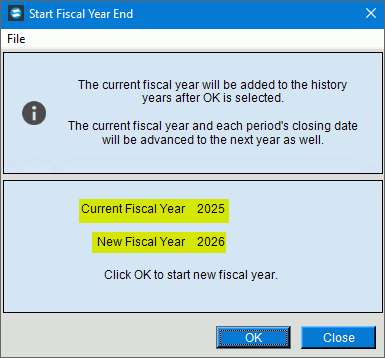
Use the Start Fiscal Year End to begin the fiscal year end. When you click OK to perform this routine, the current fiscal year will be added to the historical years and the fiscal year and the date for each closing period will be advanced to the next fiscal year. In addition, the options for Restrict Fiscal Year Processing are all turned on for the prior fiscal year that is created. The Restrict Fiscal Year Processing options control entries being made in a selected year and you can change the settings to suit your organizations needs, if desired.
Note: This is the only step for fiscal year end. After running this, review the Restrict Fiscal Year Processing settings to confirm they are set as you would like them to be. Then when ready you can run the Clear and Close if applicable and then later make your adjusting entries using Adjustments Processing.
Directions:
To open Start Fiscal Year End click Year End and then click Start Fiscal Year End.
Start Fiscal Year End Window Example:
Start Fiscal Year End Prompts
|
|
Fiscal Year |
Select the fiscal year to become a historical year. |
|
To update the new or changed information, click Save or press [ENTER]. Keyboard shortcut: [ALT + s] |
|
|
|
To close the window, click Close. |

 CAUTION: To avoid losing
data, you must save new or changed information.
CAUTION: To avoid losing
data, you must save new or changed information.