on the toolbar.
Employee Master Maintenance - Overview
Use Employee Master Maintenance to create, edit or delete payroll information for an employee, such as name, address, salary, and withholding information. You can also create scheduled deductions and other pays for employees at this time as well.
Directions:
To open Employee Master Maintenance, click Employee
Maintenance
on the toolbar.
Tip: Other ways to access Employee Maintenance, click here.
Employee Maintenance Window Example:
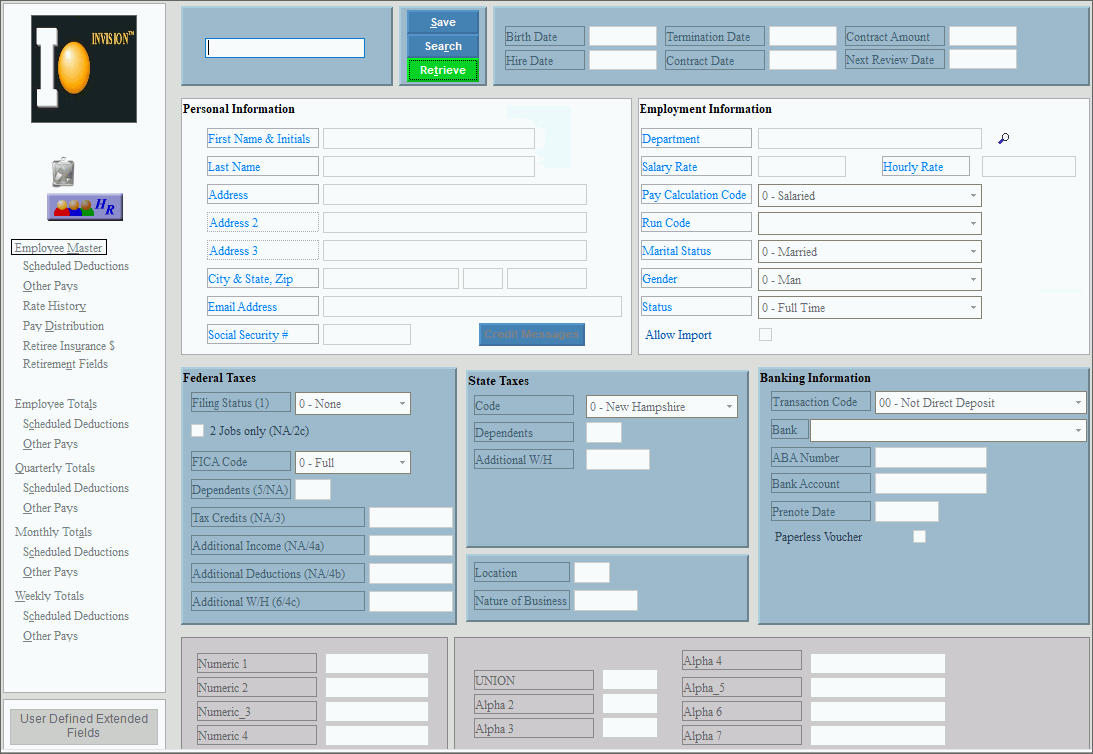
Field Details by Section |
|
Tip: You can add an employee image to their file. To see information about adding a picture to the employee's master file, refer to the Menu Tree. |
|
Creating an employee |
1. To create an employee
enter a new employee
number; then press [Enter].
To indicate that you are building a new employee, 2. Enter the employee Date of Birth and Date of Hire. 3. Enter the employee First Name & Init, Last Name, and Address. 4. Enter the employee's Department, Salary or hourly amount, Pay Calc Code, Payroll Run code and State code. 5. Enter Direct Deposit information, if applicable. 6. Enter Scheduled Deductions and Other Pays for the employee, if applicable. 7. Click Save when finished.
|
Employee Information Sections |
|
Enter employee number, date of hire, termination date and contract information. Next enter information such as the employee name, address, and pay rates. |
|
Enter dependent information, additional federal withholding, and additional state withholding. Enter the state code, dependents, additional state tax withholding amounts. |
|
Enter direct deposit information for the employee's net pay and their nature of business information if applicable. |
|
Enter data for the numeric and alpha user-defined fields. |
|
Tip: To display the following areas in Employee Maintenance, click the option in the menu. |
|
Assign deductions to an employee and specify direct deposit information for specific deductions. |
|
Enter other pay information, such as vacation, sick, and holiday pay. |
|
Enter the employee's review date and a history of pay rate changes. |
|
Set up the automatic allocation of the employee's hours and pay among multiple departments. |
|
Enter the flat-rate dollar amount for employee retirement insurance, which prints on the Monthly Retirement Report for Maine. |
|
Enter the employee's retirement plan information, including data for MSR (Maine State Retirement System). |
|
View totals for time worked, withholding amounts, earnings, vacation time accruals, and sick time accruals. The fields are updated by the system, so you normally do not need to edit them. |
|
View total earnings and withholding amounts for the current month and the four quarters of the current year. |
|
View total earnings and withholding amounts for any month within the current year. |
|
View total earnings and withholding amounts for all of the pay periods within the current month. |
|
View individual paychecks or a group of checks from history for an employee. |
|
Left Panel of Employee Master Maintenance |
|
Open Employee Maintenance programs and manage images. |
|
|
Open the Notes window, to enter miscellaneous notes about the employee. |
|
Open the Human Resources window, to enter Human Resources notes about the employee. |
Editing an Employee |
To avoid losing data, you must save new or changed employees. If you make changes to an employee, such as, changing the pay rate, termination date, scheduled deductions, or other pay information, and the employee is also in who is also in Permanent Pay Entry, be sure to confirm that the changes are reflected on the employee's Permanent Payroll Check before the next Payroll Run. 1. Enter the employee number and press [ENTER]
or click Retrieve
2. Position the mouse at the field to change. 3. Enter the changes. 4. To complete the edit
process, click Save
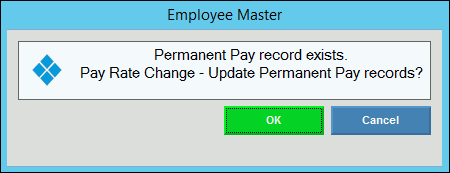
5. If the employee has changes made to their information and the employee has a Permanent Payroll Check then the following message displays:
To update the employee's permanent pay to reflect recent changes, click OK. Or, click Cancel to manually update the employee permanent payroll check information.
|
Deleting an Employee |
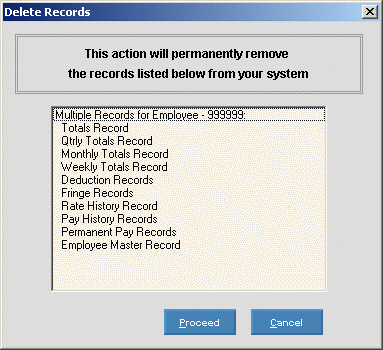
To delete an employee , the following must have zero balances: employee totals, deductions totals, other pay, and checks. Make sure the employee does not have an existing permanent pay: See Permanent Payroll Check Entry - Overview and Payroll Verification Reports - Check the Permanent Pay Check Files. 1. Enter the employee number and press [ENTER]
or click Retrieve
2. Click File
from the menu, and
next click Delete. 3. At the Delete prompt,
click Proceed to delete,
or click Cancel to escape
from the delete routine. |

 CAUTION: To avoid losing data,
you must save new or changed Employees.
CAUTION: To avoid losing data,
you must save new or changed Employees. displays near the employee
number.
displays near the employee
number.